Change Requests
Change Requests (CRs) provide a controlled, branch-based process for making changes to items. Each CR creates an isolated editing branch in the workarea’s git repository, and modifications go through an approval workflow before merging back to main.
Change Request List
Navigate to Change Requests in the sidebar. Filter by status — the chips offer every status the configured change request types’ workflows define (with the default workflow: Draft, Open, In Review, Approved, Rejected and Merged). CRs are grouped into Active and Closed sections when viewing all. Each card shows the CR’s type and its current status.
Creating a Change Request
- Navigate to Change Requests in the sidebar
- Click New Change Request
- Pick a Type when the workarea offers more than one (see Change Request Types below)
- Enter a title and an optional description explaining the proposed change, and fill in any fields the type defines
- The CR is created in its workflow’s initial status — Draft with the default workflow — with its own branch
Change Request Types
A change request carries a type, exactly as a work item does. The type selects two things:
- Which workflow the CR follows. An engineering change request can require a review board’s approval while a typo fix goes straight from Draft to Merged.
- Which custom fields the CR carries. Safety classification, affected baseline, justification, CAB decision date — whatever the type defines.
Administrators define types in Settings → Workflow & Verification → Change Request Types, at the workarea, group or global tier, with the same inheritance rules as every other type. Every installation ships with one type, Change Request, bound to the built-in change-request workflow; a CR created before types existed belongs to it and behaves exactly as it always did.
Fields on the detail page
The type’s fields appear on the detail page in the same layout an item uses: long-form fields (rich text) get a card of their own in the main column, everything else sits in the Details panel on the right. Edit the title, description, type and fields in place, then click Save in the top bar — nothing is written until you do. Values left behind by a change of type or a removed field are listed read-only under Other values, so nothing recorded on a CR is ever hidden.
Changing a CR’s type
A CR is often raised before anyone knows whether it is a deviation or a full ECR, so the type can be changed later from the Details panel while the CR is open (merged and rejected CRs keep their type). When the new type follows a different workflow:
- If that workflow has a status with the same name as the CR’s current one, the status is kept.
- Otherwise the CR moves to the new workflow’s initial status. The page warns you before you save, and the move is recorded in the CR’s status history.
The same rule applies when a work item, document or verification iteration changes type — see Type & Field Inheritance.
The Change Request Lifecycle
A CR’s status is driven by its type’s workflow — use the status dropdown in the detail page header to see and perform the available transitions, exactly as for items. The default change-request workflow is:
| Transition | From → To |
|---|---|
| Submit | Draft → Open |
| Request Review | Open → In Review |
| Approve / Reject | In Review → Approved / Rejected |
| Merge | Approved → Merged |
| Reopen | Rejected → Draft |
Administrators can change these statuses and transitions — including which statuses may merge — in Settings → Workflow & Verification → Workflow Definitions (the Change Request workflow), or bind a different workflow to a change request type under Workflow Assignments. Transitions can carry guards and effects like any other workflow; a set field effect writes to the type’s custom fields.
Note: A CR’s status can never be changed by editing a field — it only moves through workflow transitions.
Working in CR Mode
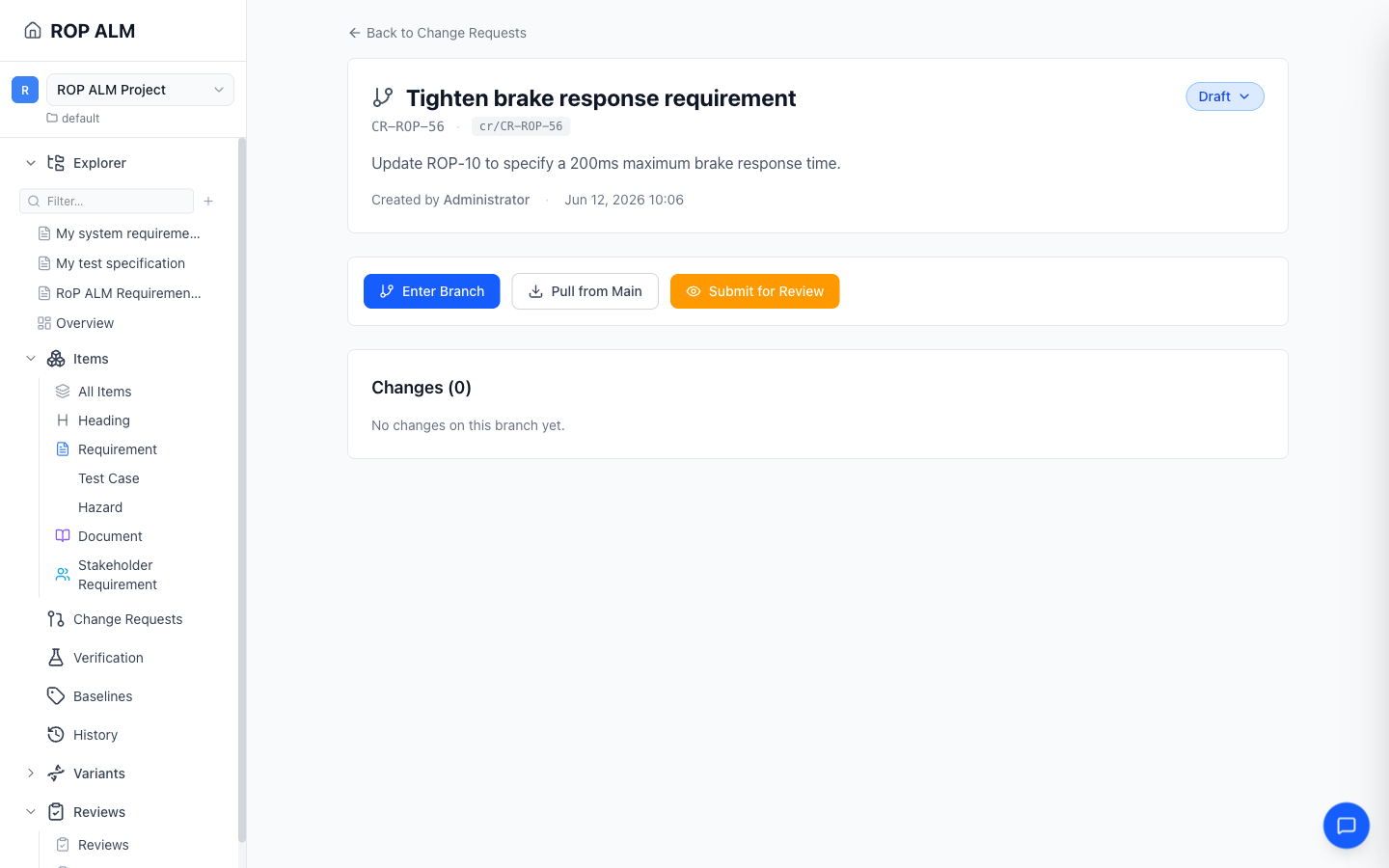
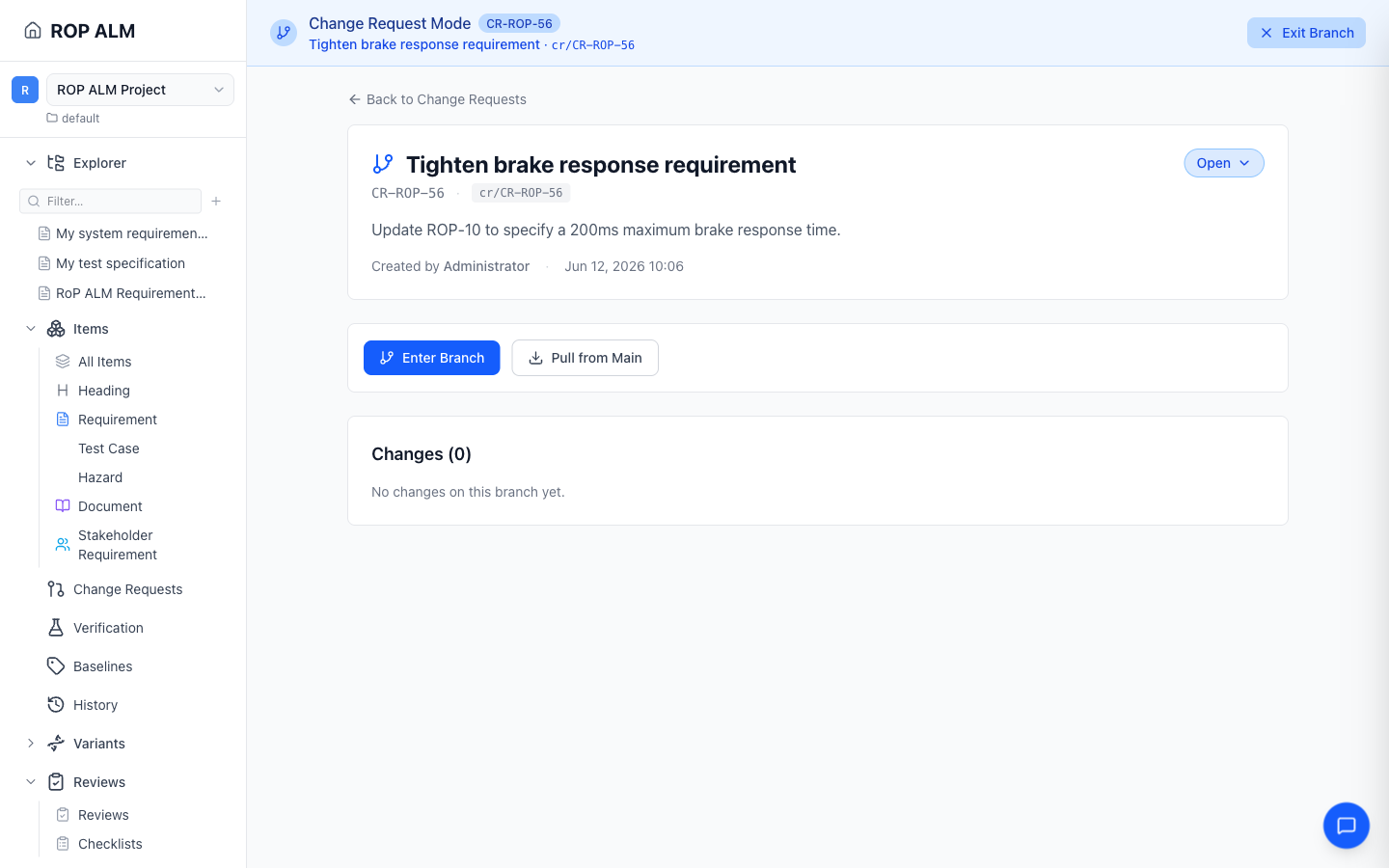
- Open a CR and click Enter Branch to enter CR mode
- A blue Change Request Mode banner appears at the top of the screen showing the CR ID, title, and branch name
- Edits to existing items are now recorded on the CR’s branch instead of main
- Click Exit Branch in the banner to return to the main branch
Viewing Changes
The CR detail page shows a unified Review panel listing every changed item on the branch (PR-review style). A summary bar reports the number of changed items, any conflicts to resolve, and how many items are new on main. Each row shows the item’s title, ID, type badge, and a color-coded change type (Added, Modified, or Deleted); click a row to expand its field-level diff. Rows that clash with main are flagged as Conflict and expand to an inline resolver instead.
Merging Changes
Merging is part of the workflow: performing a transition into the Merged status is the merge. The Merge to main button sits in the Review panel’s action footer and appears only when the CR’s workflow offers a merge transition from its current status and you hold that transition’s permission — with the default workflow, that means the CR must be Approved.
The merge first integrates the latest main into the CR branch, then fast-forwards main to include the branch’s changes, re-indexes the affected items, and deletes the CR branch. When the branch conflicts with main, the clashing items are listed as conflicts in the Review panel; resolve each one inline (pick a side per field, or keep-vs-delete for a delete/modify clash) and then use Resolve & merge to main to resolve and merge in one step, or Resolve & update from main to bring only the resolved changes onto your branch without merging.
Pulling Updates
When others have advanced main, a Pull from main button appears in the action footer; click it to bring their changes onto your CR branch and keep it up to date. If those changes conflict with yours, the affected items surface as conflicts in the Review panel — resolve them inline, then use Resolve & update from main.