Link Types
Link types define the kinds of relationships that can be created between items and documents (e.g., “Verified by”, “Derives from”, “Mitigates”). Each link type has forward and reverse labels, optional rules restricting which types can be connected, and optional custom fields on the link itself.
Managing Link Types
Navigate to Settings → Data Model → Link Types. The list shows each link type with its labels and its rules as Source → Target pills.
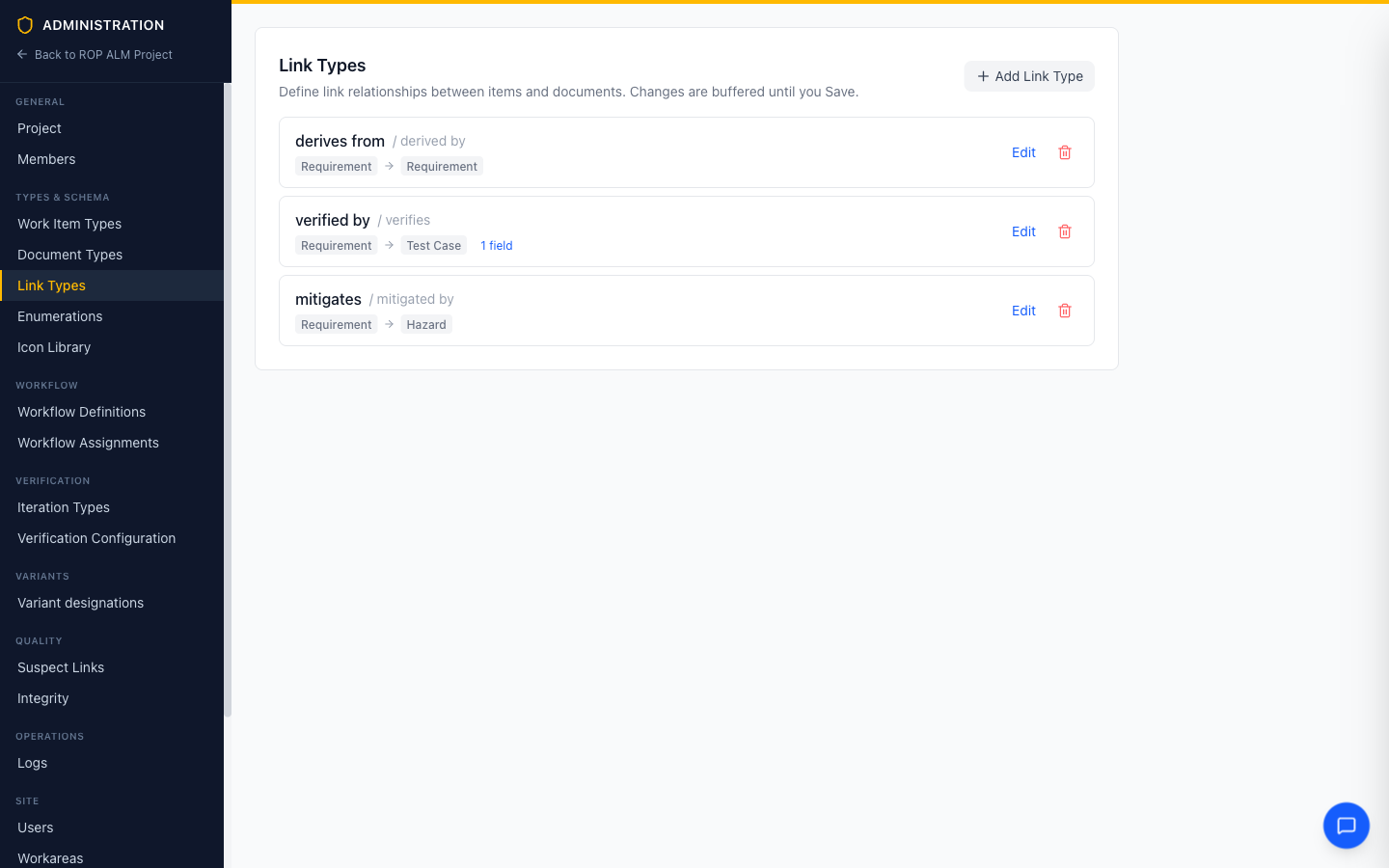
Note: Changes are buffered — new link types show a New badge, edited ones Edited, and deletions Marked for deletion with an Undo. Nothing is persisted until you click Save in the bottom bar.
Creating a Link Type
- Click Add Link Type
- Enter a Key — a unique identifier
- Set the Label — the forward direction (e.g., “Verified by”)
- Set the Reverse Label — the reverse direction (e.g., “Verifies”)
- Add type rules and link fields as needed, then click Add
How link type definitions resolve across the global/group/workarea tiers is covered in Type & Field Inheritance.
Type Rules
Type rules control which types can be connected by this link type. Each link type can have multiple rules; a link is allowed if it matches any rule.
- Click Add Rule within the link type editor
- Pick the allowed Source types — checkboxes per type, with an Any type option
- Pick the allowed Target types the same way
Document types appear in the lists with a “(Doc)” suffix, so links can also target documents.
Custom Link Fields
Link types can define their own fields capturing data on each link instance — useful for metadata like applicability, rationale, or confidence.
| Type | Description |
|---|---|
| String | Single-line text |
| Enum | Dropdown from an enumeration, with an optional Multi setting for multiple values |
| Number | Numeric value |
| Boolean | True/false toggle |
| Date / Date & Time | Date(-time) values |
Examples
| Label | Reverse Label | Use Case |
|---|---|---|
| Verified by | Verifies | Requirement → Test Case traceability |
| Derives from | Derived by | Requirement decomposition |
| Mitigated by | Mitigates | Hazard mitigation tracking |