Baselines
Baselines capture a named snapshot of your workarea at a specific point in time. They are useful for tracking progress, comparing versions, and establishing formal milestones.
Because every workarea is backed by a git repository, a baseline is not a copy of your data — it is a tag on a specific commit, together with a frozen snapshot of the workarea’s resolved configuration. That means a baseline always renders exactly as it did on the day it was created, even if type or enumeration configuration changes later.
Creating a Baseline
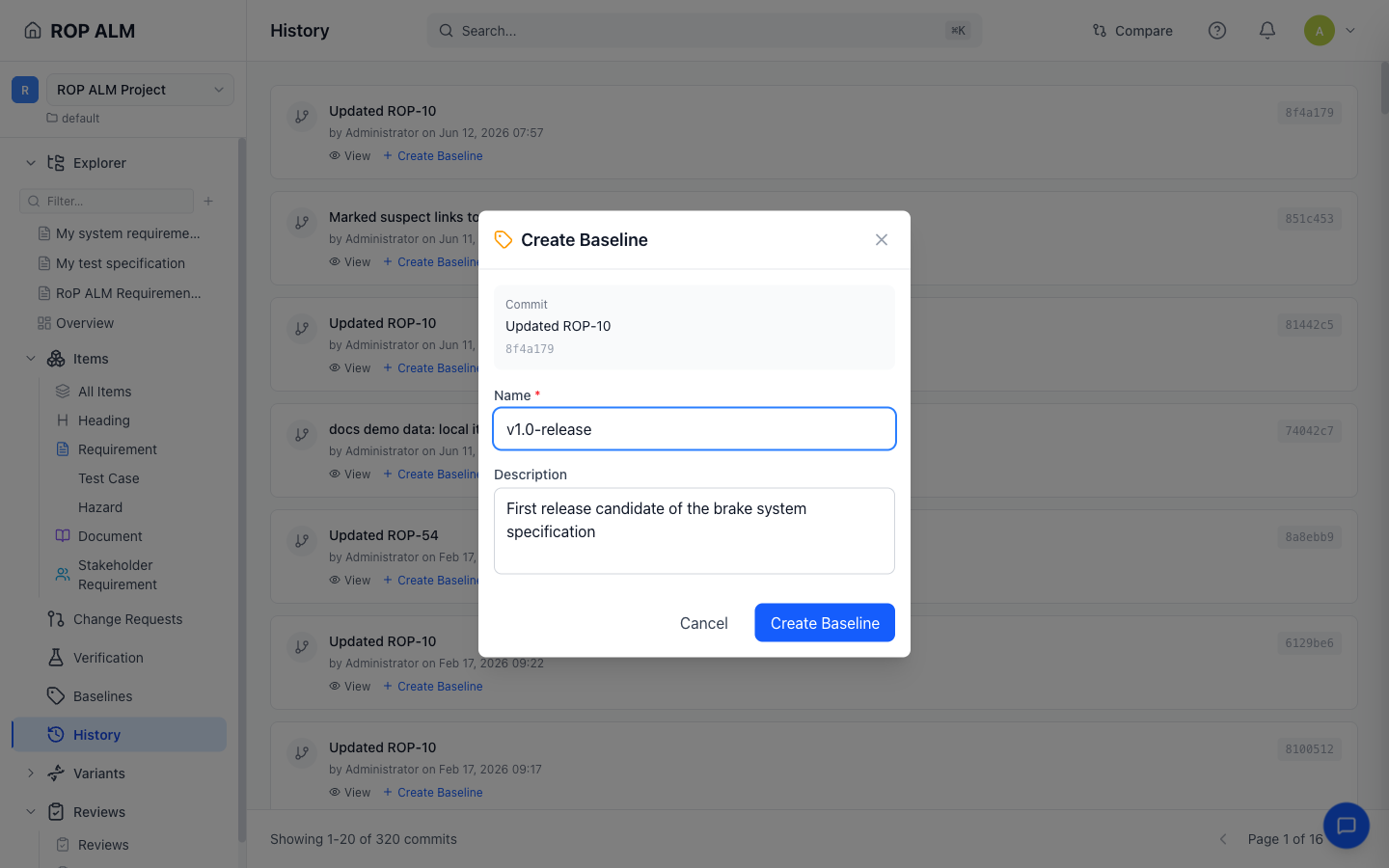
Baselines are created from the History page:
- Navigate to History in the sidebar
- Find the commit you want to baseline
- Click Create Baseline on that commit
- Enter a name and description — names must be unique and use only letters, digits, dashes, and underscores
The Baselines page lists all baselines with their name, description, source commit, and creation date. Its empty state links you to the History page.
Permissions: Viewing baselines requires
baselines:view, creating thembaselines:create, and deleting thembaselines:approve. Deletion asks for confirmation and cannot be undone.
Viewing a Baseline
Click a baseline’s name (or the eye icon) to enter Historical View. An amber banner shows the baseline tag, source commit, and an Exit Historical View button. In this mode:
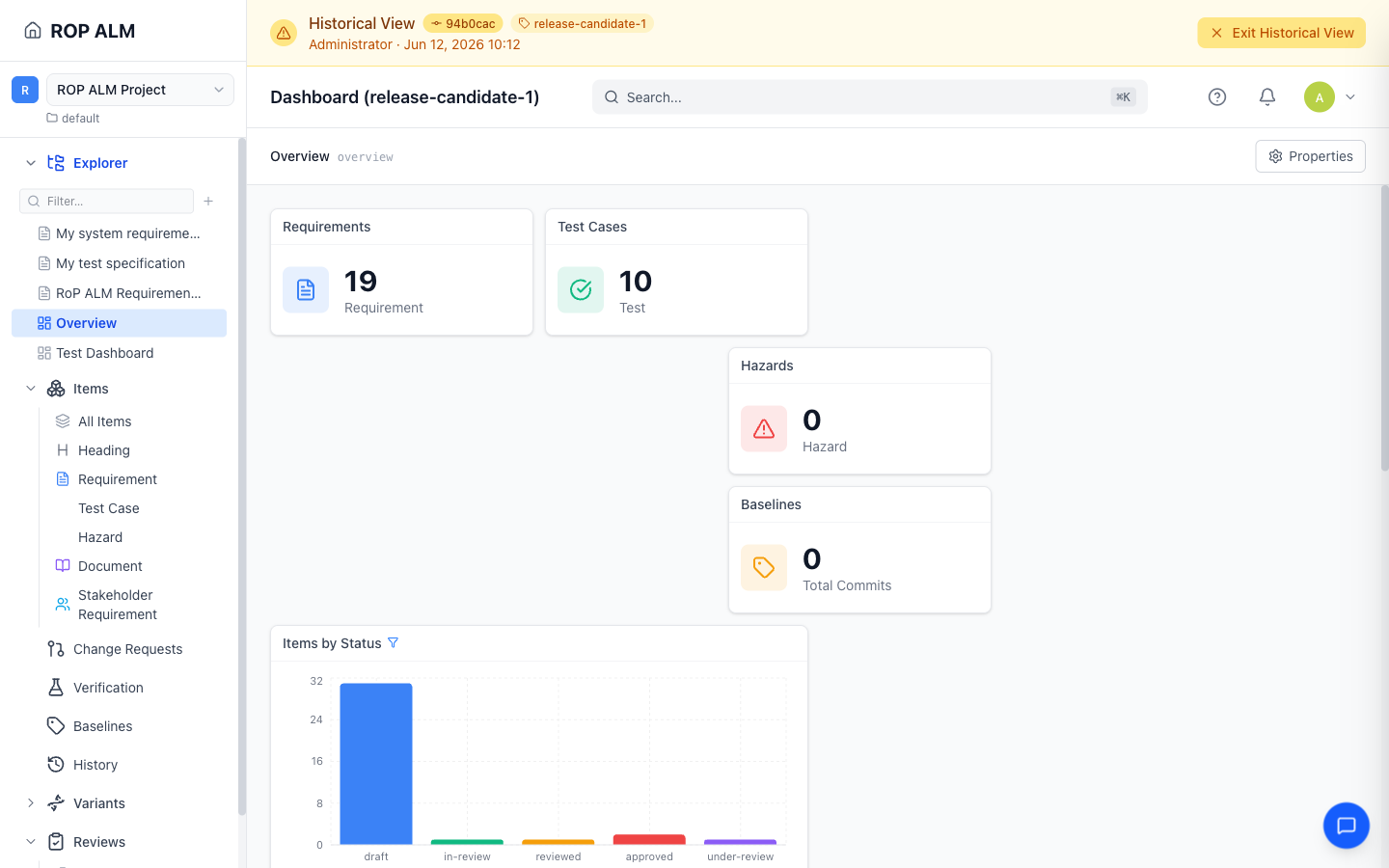
- All items, documents, dashboards, reviews, checklists, and change requests show their state as of the baseline’s commit
- Editing is disabled everywhere — you browse in read-only mode
- Switching workareas exits historical view
Tip: Historical View is not limited to baselines — the History page’s “View revision” action opens the same read-only view for any commit.
Comparing Baselines
Comparison happens on the History page, where baselines appear as tagged commits:
- Click Compare on the History page
- Select the two commits you want to compare (e.g. two baseline commits)
- Click View Diff to open the Compare Commits page with a change summary and per-item diffs
History and Diffs
For detailed change tracking and commit-level comparisons, see History & Diffs.