Members
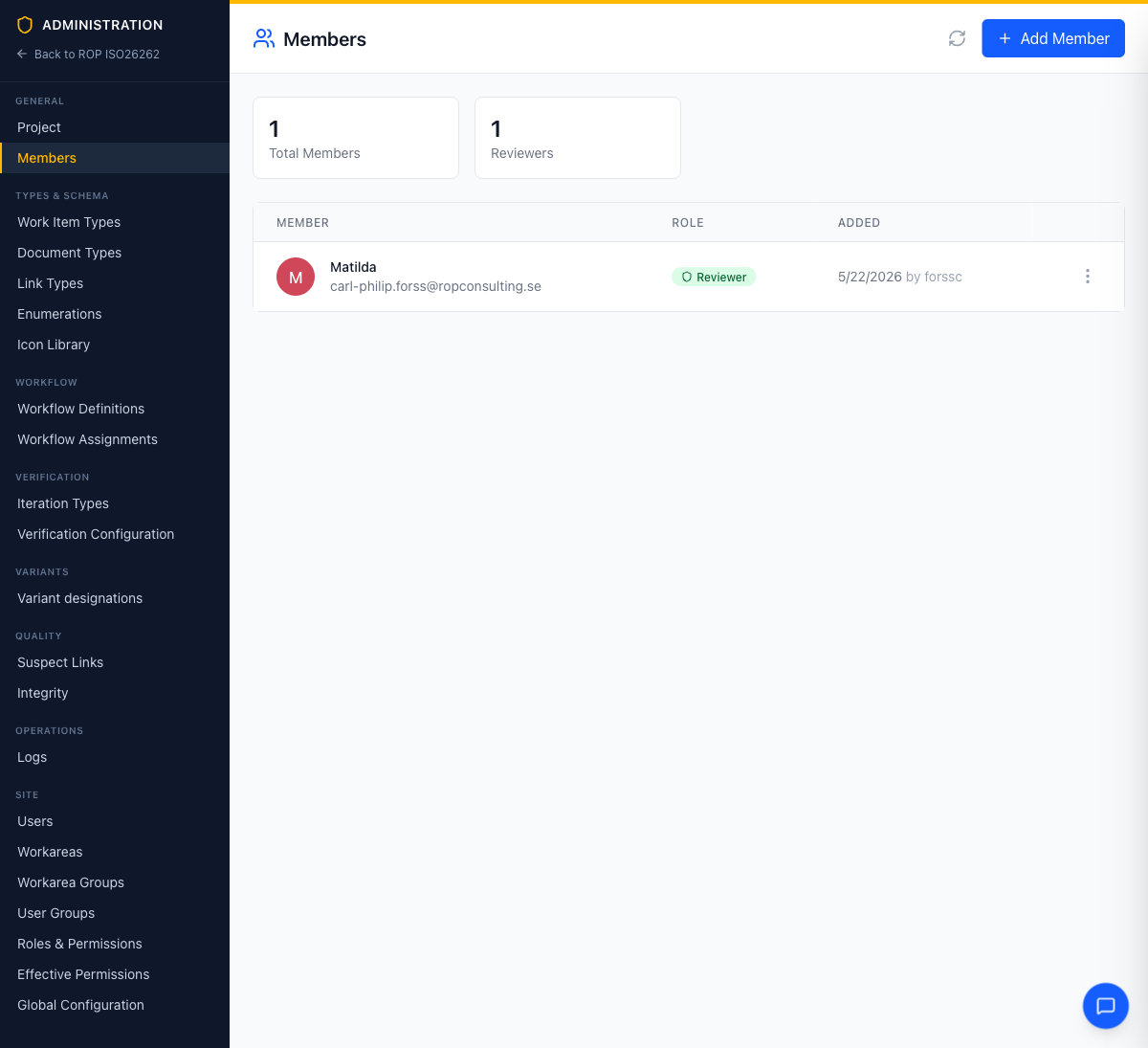
The Members page lets workarea administrators manage who has access to the workarea and what role they hold.
Roles
Each member is assigned a role that determines what they can do in the workarea. The built-in workarea roles are:
| Role | Description |
|---|---|
| Workarea Admin | Full access including settings, member management, and all item operations |
| Editor | Can create, edit, and transition items, but cannot manage settings or members |
| Reviewer | Editor rights plus baseline approval and review management |
| Viewer | Read-only access to all workarea content |
Site administrators can adjust these roles or define additional custom ones — including roles restricted to a subset of items, such as “may edit only own drafts”. See Roles & Permissions.
Note: Direct membership is not the only way users gain access. Roles can also be granted site-wide, per workarea group, or via user groups — those users can work in the workarea without appearing in the members list.
Managing Members
Navigate to the workarea’s Settings → General → Members page to view all workarea members.
Adding a Member
- Click Add Member
- Select a user from the list of available users (users already in the workarea are excluded)
- Choose a role
- Click Add
Changing a Member’s Role
- Find the member in the members table
- Click the Edit button
- Select the new role from the dropdown
- Confirm the change
Removing a Member
- Find the member in the members table
- Click the Remove button
- Confirm the removal
Note: Managing members requires the Workareas: Manage members permission, which the Workarea Admin role includes. If you see a permission warning, contact your workarea administrator.
Member Statistics
The Members page displays summary cards showing the total number of members and a breakdown by role, giving a quick overview of your team’s composition.