Document Editor
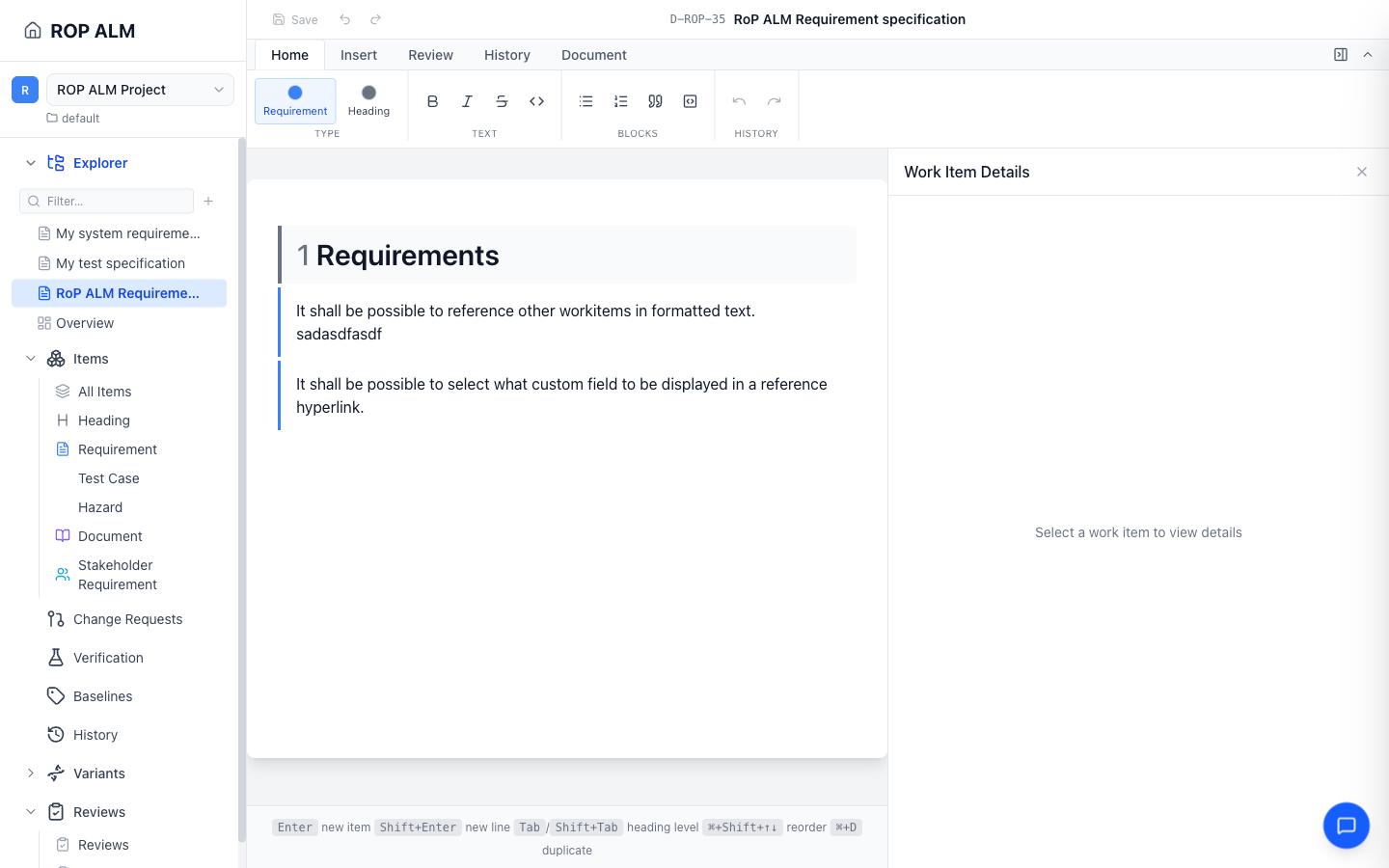
The document editor is a Word-style editing surface where every block is a real work item. An Office-style ribbon at the top organizes everything into tabs: Home, Insert, Review, History, and Document. The ribbon can be collapsed; a Quick Access Toolbar at the top-left holds Save, Undo, and Redo.
Document Structure
A document is a flat sequence of work-item blocks:
- Headings are items of the built-in Heading type with a level — Title (unnumbered) or H1–H6, numbered automatically
- Content blocks are items of your configured types; their description is the rich text you see, and key fields render as chips
Change a block’s type from the Home tab’s Type group (with quick picks for recently used types) or the right-click Change Type menu. For headings, the level dropdown on the Home tab (or Tab/Shift+Tab) changes the level.
Adding Content
- New items — Insert → New inserts a work item at the cursor; or right-click a block and choose Insert Above / Insert Below. The item is created in the workarea when you save.
- Existing items — copy items where they already exist (⌘C on selected blocks in any document) and paste them where you want them. The Paste items dialog asks how to insert them:
- Live — a reference that stays in sync with the original everywhere it appears
- Pinned — a read-only snapshot frozen at a chosen revision (you can also Pin to revision… later from the context menu)
- Duplicate — an independent copy
Multi-select blocks with ⌘-click; Copy, Cut, Paste, Duplicate, and Delete work on the selection via the context menu or keyboard.
Formatting and Media
The Home tab covers text formatting: Bold, Italic, Strikethrough, inline code, bullet/numbered lists, quotes, and code blocks. The Insert tab adds:
| Feature | Description |
|---|---|
| Link | Hyperlinks in rich text |
| Table | Full tables inside item descriptions |
| Image | Upload, paste, or drop images — stored with authenticated, workarea-scoped access |
| Math | LaTeX equations via the math dialog, rendered inline |
| Diagram | Embedded draw.io diagrams, editable in place |
Organizing Blocks
- Change the type of the block under the cursor with Alt+1 … Alt+9 (⌃1 … ⌃9, the Control key, on a Mac — Option+digit is left alone because it types @ | [ ] on Nordic keyboards). The digit is the type’s position in the ribbon’s Type group and is printed on each button. That order is fixed for as long as the document is open — it is taken when the document opens, your recently used types first — so a digit never moves while you work. Types the document’s layout does not allow have no digit.
- Move Up / Move Down via the context menu or ⌘+Shift+↑ / ⌘+Shift+↓
- Show linked items (context menu) filters the document to items linked to the selected one — an Exit focus banner returns you to the full document
The Side Panel
The right-hand side panel is a Word-style tabbed strip with two tabs:
- Document — the document’s own description, its document-type fields, and document-level links, opened by Document → Properties (this tab is closable)
- Work Item — the selected block’s fields, the same panel as in the items list
Which item types are allowed in the document, and which fields appear as chips, is controlled in Document → Layout Settings. Pinned blocks are shown read-only.
Reviewing
The Review tab hosts the in-document review workflow: start a review, record OK / Has issues opinions on the selected item, and add comments, with a gutter overlay showing everyone’s opinions. See Reviews.
History and Compare
The History tab shows the document’s version history and offers Compare versions — a track-changes view of any two revisions of this document. See History & Diffs.
Saving
Press ⌘S / Ctrl+S or click Save in the Quick Access Toolbar. An amber Unsaved indicator at the top-right tracks pending changes, and a browser warning prevents accidentally closing the tab with unsaved work. If someone else changed the document while you were editing, a conflict-resolution dialog shows both versions and lets you merge.
The Document Tab
Document-level concerns live on the Document ribbon tab:
- Properties — opens the document Properties side panel to edit the document’s description, its document-type fields, and document-level traceability links
- Title and workflow status — status changes go through workflow transitions
- Export — Word (.docx) with manageable templates, or PDF
- Layout Settings — allowed item types and field chips
- Move… — move the document to another Workspace folder
Tip: If variant management is enabled, the DNA picker at the right of the ribbon strip shows the document resolved against a selected variant DNA.