Workflows
Workflows define lifecycles through statuses and transitions. Item types, document types, verification iteration types, reviews, and change requests all run on workflows.
Concepts
- Statuses — the possible states (e.g., Draft, In Review, Approved), each with a label and color; statuses can be marked Initial (where new entities start) or Terminal
- Transitions — the allowed moves between statuses; a transition can fire from several statuses into one target, and can require a specific permission
- Guards — conditions that must be met before a transition can occur
- Effects — actions automatically performed when a transition executes
Workflow Editor
The full-page workflow editor (under Settings → Workflow & Verification → Workflow Definitions) shows the workflow as a state Diagram or as a Table (toggle at the top):
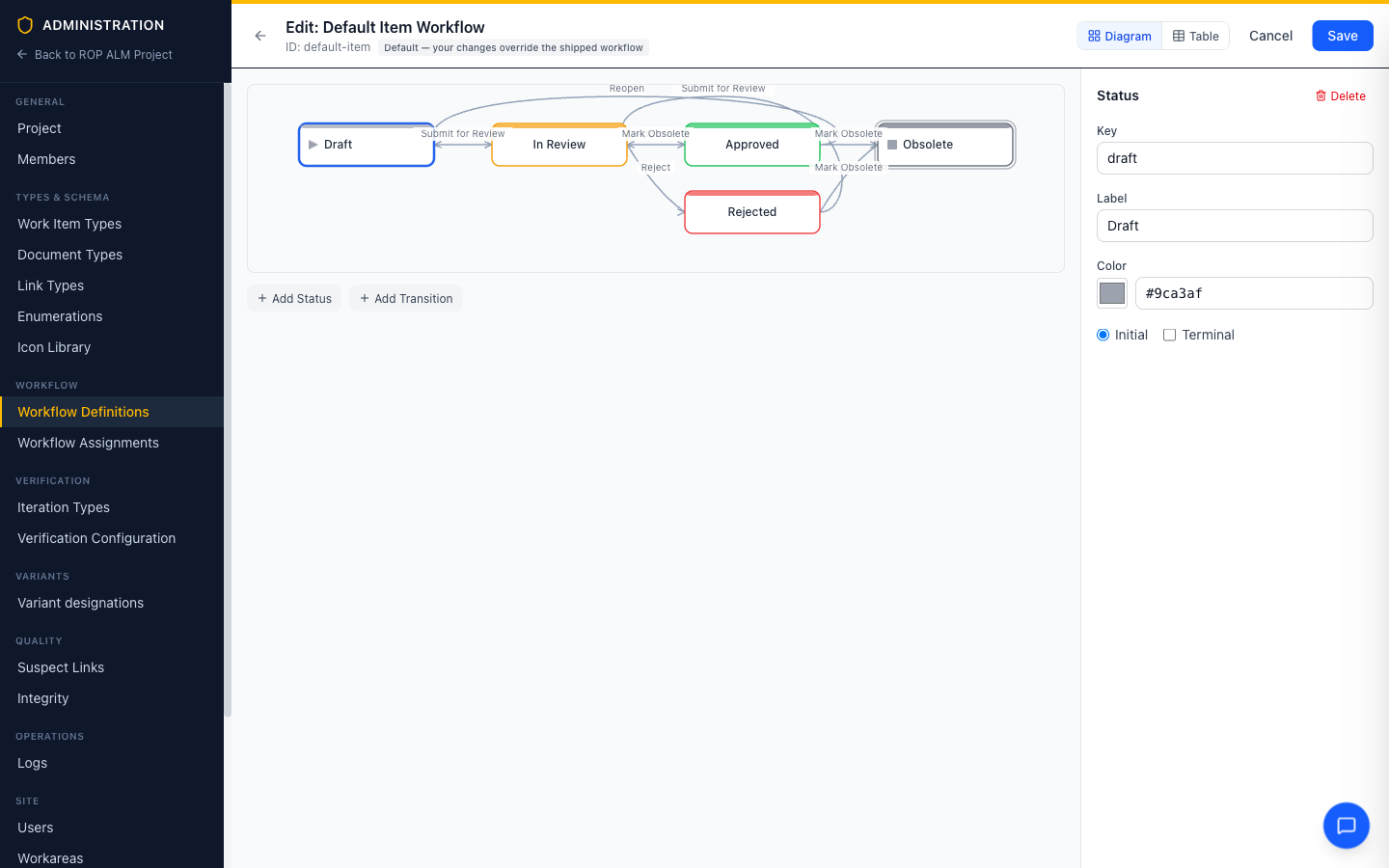
- Click a status or transition to edit it in the property panel on the right — name, color, Initial/Terminal flags for statuses; from/to statuses, permission, guards, and effects for transitions
- Add Status and Add Transition buttons sit below the diagram
- Validation runs live: errors (like duplicate keys) block saving, warnings are shown in an amber bar
Editing one of the shipped default workflows creates an override; the editor labels it accordingly. See Workflow & Policy Inheritance for how workflow definitions resolve across the global/group/workarea tiers.
Where you edit a workflow decides who inherits it
The same editor is available at all three configuration tiers, and the tier you open it from is the tier the workflow is saved into:
| Open it from | Who gets the workflow |
|---|---|
| Administration → Platform → Global Configuration → Workflows | Every group and every workarea |
| Administration → Provisioning → Workarea Groups → group → Workflows | Every workarea in that group |
| Settings → Workflow & Verification → Workflow Definitions | That workarea only |
At the group and global tiers, workflows inherited from above are listed with an Inherited badge and an Override action rather than Edit — overriding saves a copy at the tier you are on, which then replaces the inherited definition for everything beneath it. A workflow inherited from a broader tier cannot be deleted from a narrower one; delete it where it is defined.
Note: On metered plans, creating custom workflows and editing guards/effects can require the corresponding plan entitlements — locked sections show a lock icon.
Workflow Assignments
Under Settings → Workflow & Verification → Workflow Assignments, you assign workflows to types, organized into three sections:
- Work Item Types — each item type can have its own workflow
- Document Types — document lifecycle workflows
- Iteration Types — verification iteration workflows
Each assignment shows a preview of the workflow’s statuses. Types without an explicit assignment use the system default workflow. Assignments are buffered until you click Save.
Guards
Guards prevent a transition from executing unless conditions are met. Each guard can carry a custom error message shown when it blocks:
| Guard Type | Description |
|---|---|
| Required Fields | Specified fields must have values |
| Field Value | A field must satisfy a condition — is empty / is not empty / equals / not equals / in list / not in list |
| Has Links | The item must have a minimum (and optionally maximum) number of links of a given type |
| No Active Links | Blocks the transition while links of the given types exist |
| Permission | The user must hold a specific permission |
| Required Input | Prompts the user for input (text, selection, or confirmation) when performing the transition |
| Custom Script | Coming soon |
Effects
Effects are actions performed automatically when a transition executes:
| Effect Type | Description |
|---|---|
| Set Field | Set a field to a value — supports tokens like $now, $user, and $input.<key> from a Required Input guard |
| Clear Field | Clear a field’s value |
| Set Review Start | Reviews only — freezes the review’s start commit to the workarea’s current HEAD when the transition fires |
| Generate Report | Reviews only — generates and stores the review protocol against the current HEAD |
| Notify | Coming soon |
| Webhook | Coming soon |
| Custom Script | Coming soon |
Guards and effects intrinsically scoped to certain entity kinds (like the review-only effects above, or the link guards, which apply only to items and documents) only appear when you’re editing a workflow that governs those kinds. For guards and effects that apply to several kinds, the property panel offers an Applies to control to narrow a step to a subset of them.