Test Execution
The test execution page provides a focused interface for stepping through test cases and recording results. Enter it with Execute Tests on an iteration’s detail page.
Layout
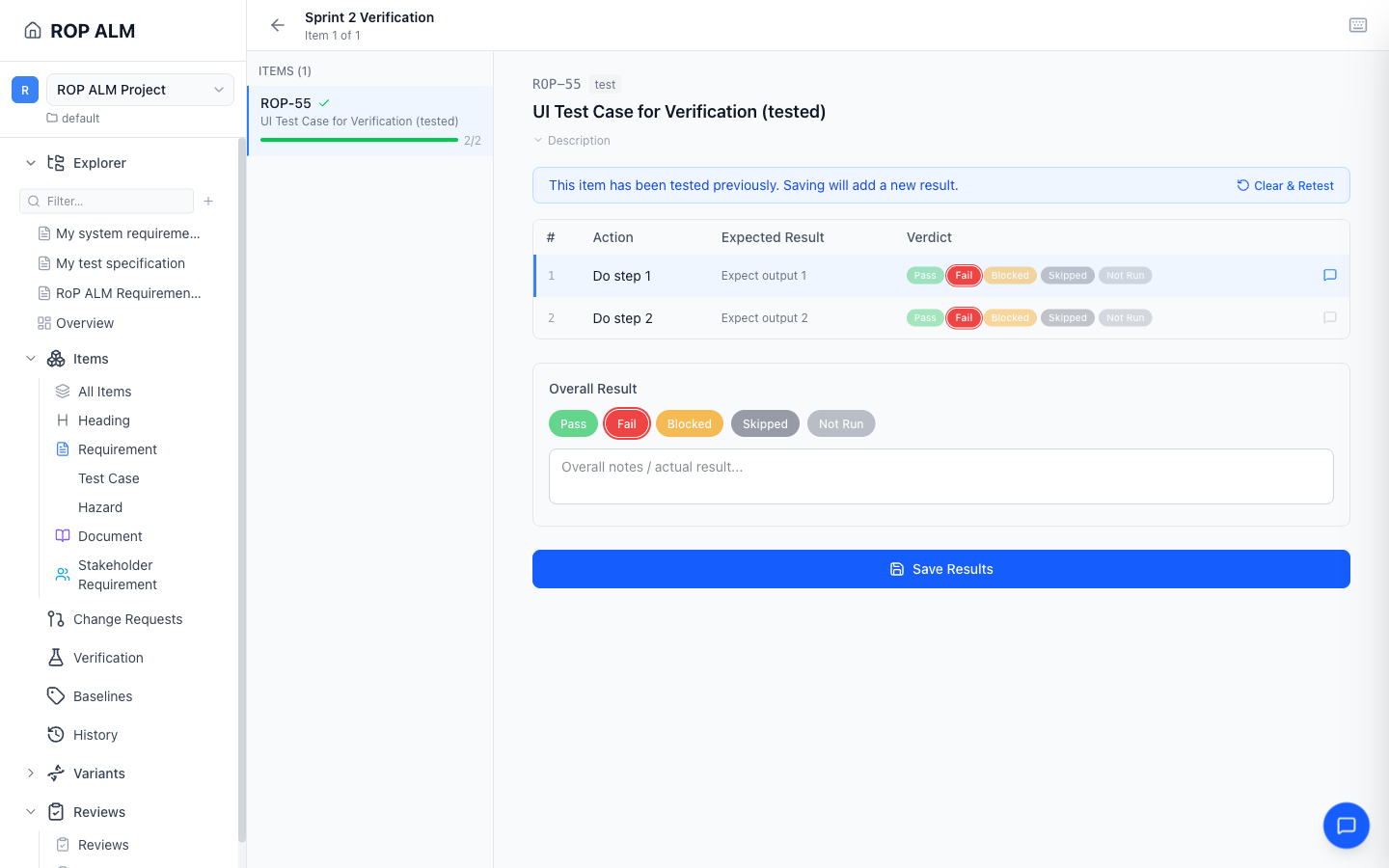
The execution page has a two-panel layout:
- Left sidebar — all items in the iteration, each with a progress bar (steps completed / total) and a green checkmark when fully executed and saved
- Main area — the selected test case with its steps, verdicts, and notes; a collapsible Description shows the test case’s description, and the top bar tracks “Item X of N”
Click an item in the left panel to switch to it. Previously saved verdicts are loaded, so you can resume where you left off.
Executing Steps
Each test case displays its verification steps in a table:
| Column | Description |
|---|---|
| # | Step number |
| Action | What to perform |
| Expected Result | What should happen |
| Verdict | One colored pill per configured verdict option |
| (notes) | Message icon toggling an actual-result notes field |
Setting Verdicts
Click a verdict pill to set the result for each step — the pills come from your workarea’s verdict enumeration (default: Pass, Fail, Blocked, Skipped, Not Run). The active verdict is highlighted with a ring, and the focused step row is marked and auto-scrolled.
Adding Notes
Click the notes toggle (message icon) on any step to expand an actual-result textarea. If notes already exist, the icon is highlighted.
Overall Verdict
Below the steps table, the Overall Result panel sets the verdict for the test case as a whole (it is shown even for test cases without steps). Once every step has a verdict, the overall verdict is derived automatically — all pass → pass, any fail → fail, any blocked → blocked. You can override it manually; a “Suggested: …” hint appears when your choice differs from the derived one. An overall notes field captures the actual result.
Saving Results
Click Save Results (or Ctrl/Cmd+S) to persist the step verdicts, notes, and overall verdict for the current item. A toast confirms success or shows errors.
Results are append-only: if the item was tested before, a banner notes that saving will add a new result. Clear & Retest resets the form to start fresh — previously saved results are kept as history.
Keyboard Shortcuts
| Key | Action |
|---|---|
| 1–9 | Set verdict on the focused step (in verdict-option order) |
| ↑ / ↓ | Navigate between steps |
| N | Toggle notes on the focused step |
| Ctrl/Cmd+S | Save results for the current item |
| Escape | Close the open notes field, then exit back to the iteration |
Toggle the shortcuts strip with the keyboard icon in the top bar to see the mapping for your verdict options.
Tips
- Work through items in order using the left sidebar — the progress bars help track completion
- Use keyboard shortcuts for fast execution: arrow keys to navigate, number keys for verdicts
- Save frequently with Ctrl/Cmd+S to avoid losing work