Work Item Types
Work item types define the different kinds of items in your workarea (e.g., Requirement, Test Case, Hazard). Each type has its own label, appearance, workflow, and set of custom fields.
Managing Item Types
Navigate to Settings → Data Model → Work Item Types to view and manage item types.
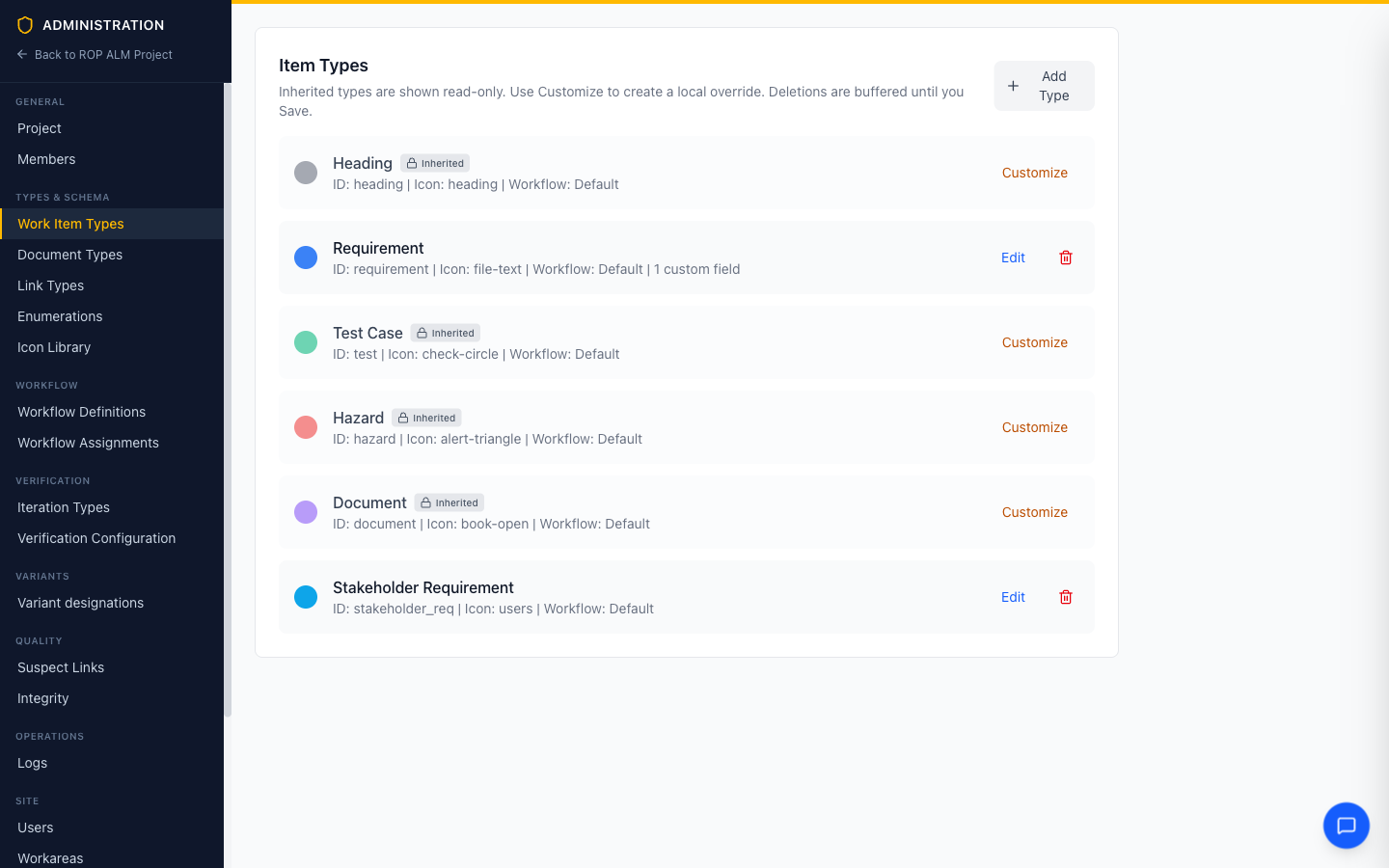
The list mixes local types with types inherited from the group or global tier. Inherited types are read-only here — click Customize to create a local override; local and customized types have an Edit button. See Type & Field Inheritance for the full rules.
Creating an Item Type
- Click New type
- Enter a Type ID — a lowercase identifier (cannot be changed after creation)
- Set the Label — the display name shown throughout the application
- Choose a Color and select an Icon (from the Icon Library, including custom uploads)
- Optionally assign a Workflow (defaults to the system default)
Note: Changes on this page are buffered — additions, edits, and deletions (which show a Marked for deletion badge with an Undo) are applied only when you click Save.
Custom Fields
Each item type can define additional fields beyond the standard set (title, description, status, etc.).
Adding a Custom Field
- Expand the type’s Fields section
- Click Add Field
- Configure the field:
| Setting | Description |
|---|---|
| Key | Unique field identifier (used in queries and the API) |
| Label | Display name shown on forms |
| Type | Data type (see below) |
| Required | Whether the field must have a value |
| Enum | Which enumeration to use (enum fields only) |
| Multi-value | Allow multiple values (enum and reference fields) |
| Target Entity | For reference fields: Item, Document, Verification Iteration, or User, optionally narrowed with a filter query |
Field Types
| Type | Description |
|---|---|
| Short Text | Single-line text input |
| Long Text | Multi-line plain text |
| Rich Text | Formatted text with the rich text editor |
| Enum (Dropdown) | Selection from an enumeration |
| Integer / Number | Numeric values |
| Boolean | True/false toggle |
| Reference | Reference to another item, document, iteration, or user |
| Verification Steps | Ordered list of verification steps (for test cases) |
| Date / Date & Time | Date(-time) picker, stored as ISO 8601 |
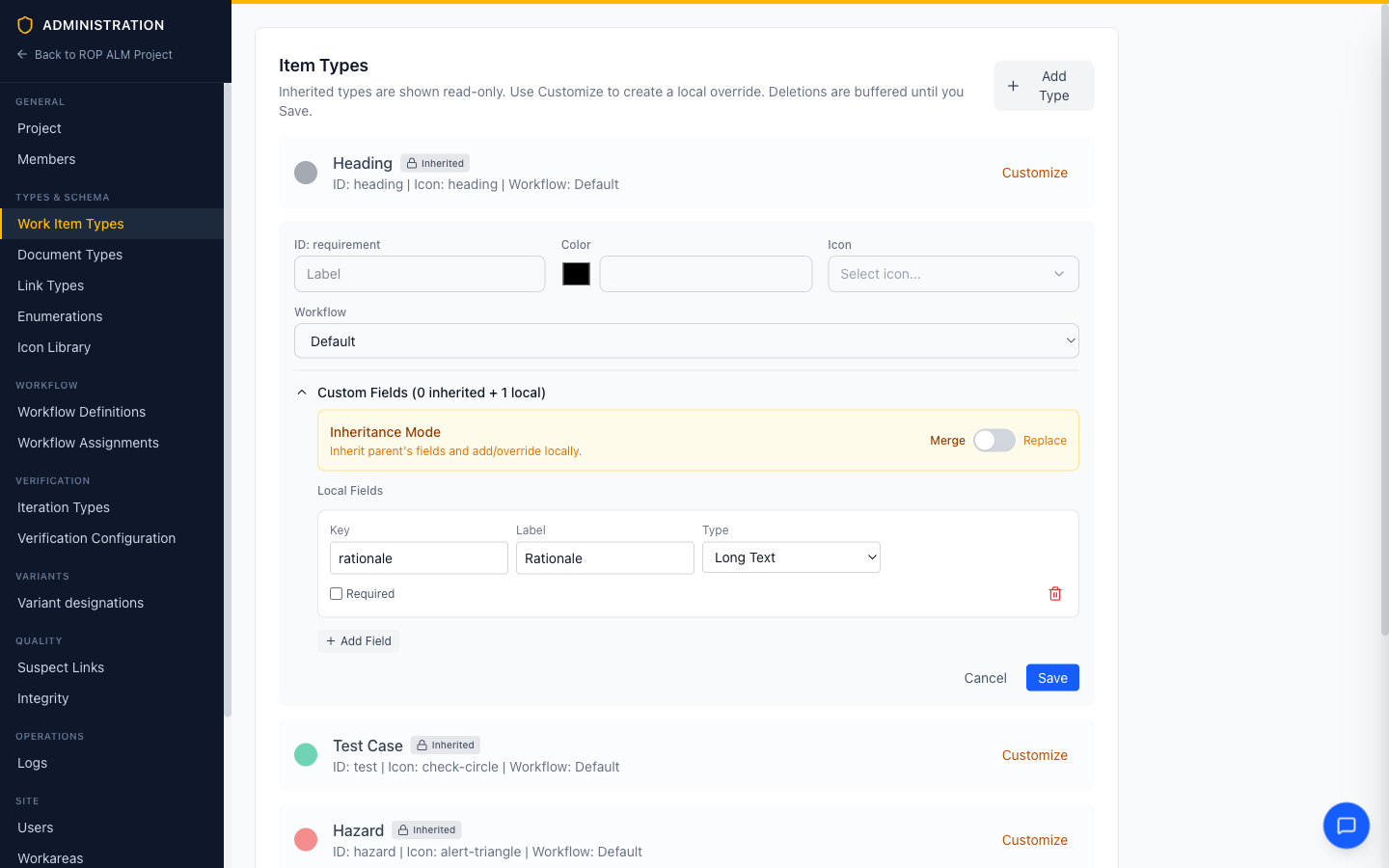
For customized types, the fields section also has an Inheritance Mode (Merge or Replace) and lists inherited fields read-only with a per-field Override action — see Type & Field Inheritance.
Document Types
Document types work similarly and are configured under Settings → Data Model → Document Types. In addition to the standard type settings (label, color, icon, workflow, and custom fields), document types have:
- Abbreviation — a short code (e.g., “SPEC”, “SRS”) used in document IDs
- Allowed Item Types — restricts which item types can be used within documents of this type; leave empty to allow all
Deleting a Type
Click the delete button on a local type — it is marked for deletion (with Undo) and removed when you Save. Inherited types can’t be deleted from here; customized types instead offer Remove local override. Deleting a type does not remove existing items of that type, but they may lose type-specific behavior.