Getting Started
ROPARC is a Requirements & Process Application Lifecycle Management tool designed to help teams manage requirements, test cases, documents, reviews, and verification activities.
Signing In
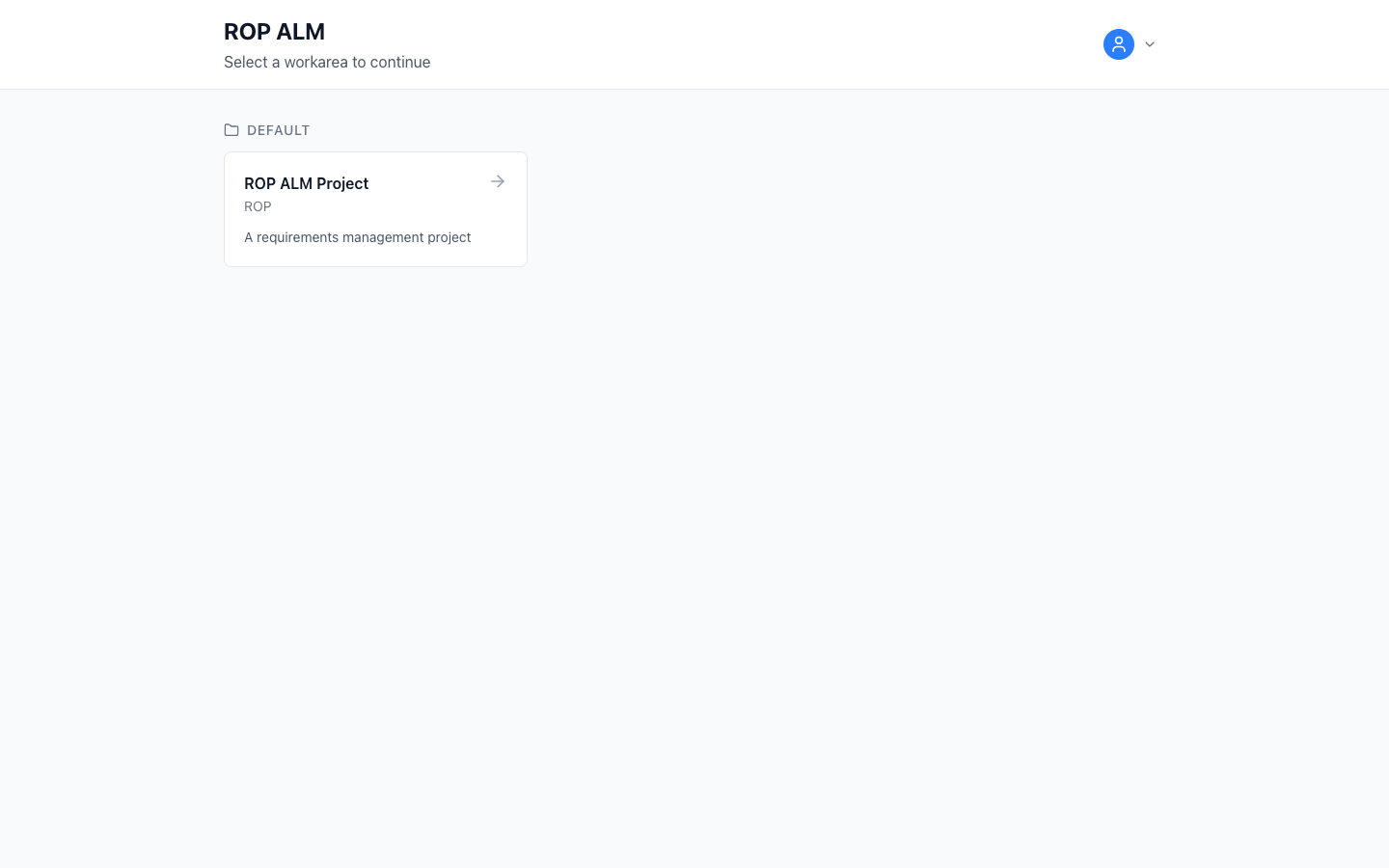
Log in with your username and password. You then land on the workarea list — each workarea is an isolated project space with its own items, documents, and settings. Pick one to continue; workareas are shown as cards, grouped by workarea group.
Navigating the Application
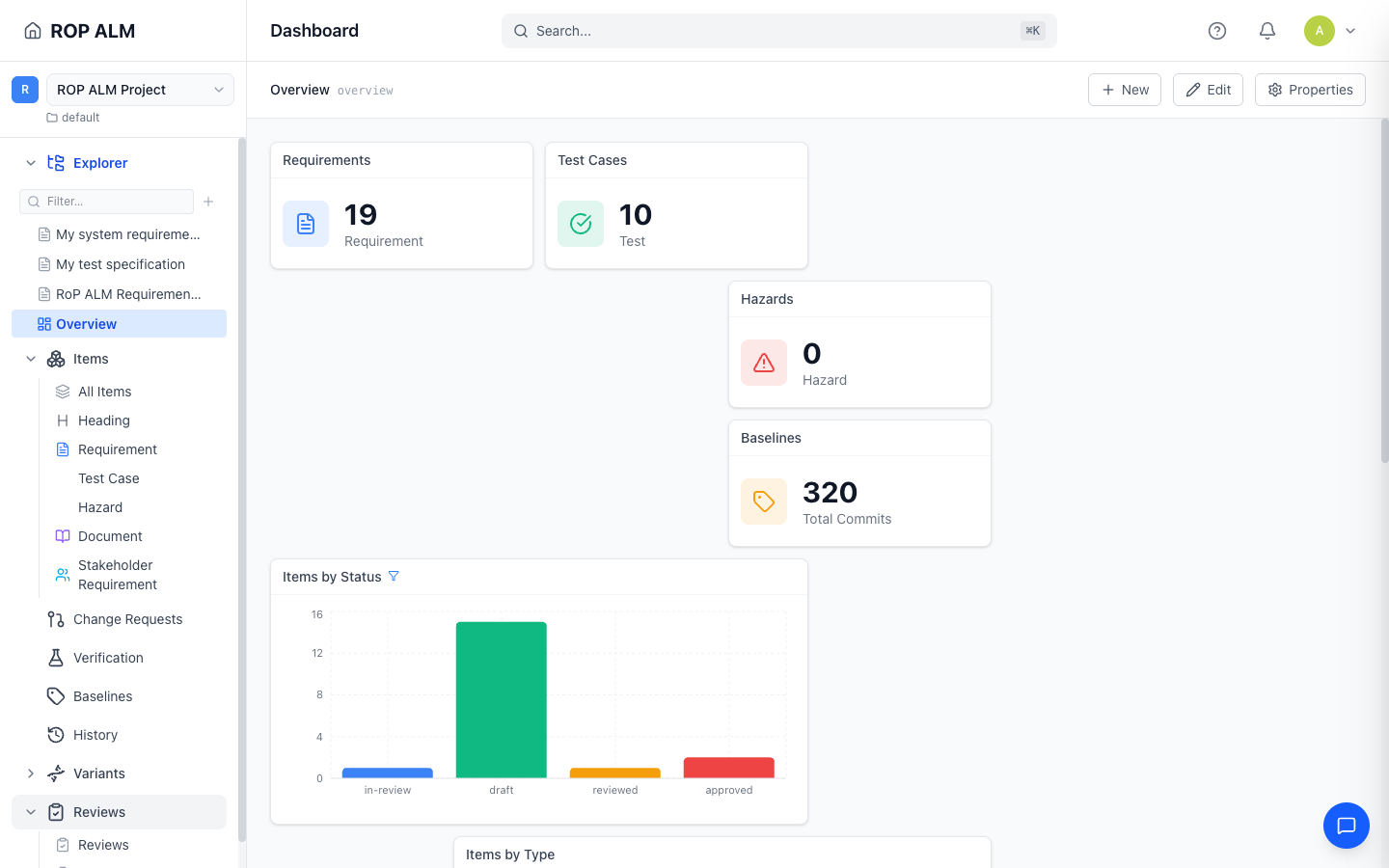
The sidebar on the left provides access to all major features:
- Workspace — a folder tree holding your documents and dashboards. Filter it, create folders, and add new documents or dashboards with the + menu.
- Items — All Items plus one entry per item type (Requirements, Test Cases, …). See Working with Items.
- Change Requests — track changes on an isolated branch through approval workflows. See Change Requests.
- Verification — run verification iterations and execute test cases. See Verification.
- Baselines — named snapshots of your data. See Baselines.
- History — the complete audit trail of changes, with commit comparison. See History & Diffs.
- Variants — Product Configurator, Variant DNAs, Variant codes, Features, and Rules (shown when variant management is enabled).
- Reviews — formal reviews and checklists. See Reviews.
The header contains a global search box (which opens the search page — it covers items, documents and dashboards, grouped by kind), the Help button, notifications, and your user menu (Profile, Administration for admins, Sign out).
Tip: The sidebar is resizable — drag its right edge, or double-click the edge to reset.
Switching Workareas
Use the workarea selector at the top of the sidebar to switch between workareas. Your current page context is preserved when switching.
Keyboard Shortcuts
- F1 — Open/close the help panel
- Escape — Close the help panel