Inline Editing
ROPARC has three editing surfaces: inline edits in the table, the side panel, and the full detail page. Inline editing in the table is the fastest route for single-field changes.
Editing in the Table View
- Double-click an editable cell to enter edit mode — a pencil icon on hover marks editable cells, and the active cell gets an indigo outline
- Make your change and press Enter to save, or Escape to cancel
The Title, Status, and custom-field columns are editable inline. ID, Type, Links, and the created/updated columns are not.
Editable Fields
| Field Type | Editor | Save / Cancel Behavior |
|---|---|---|
| Title | Text input | Enter or click outside saves |
| Enum fields | Popover with colored options | Saves on selection; clicking outside cancels; choose Not set to clear |
| Text/String custom fields | Text input | Enter or click outside saves |
| Date / Date & Time fields | Date(-time) picker | Enter or click outside saves |
For enum fields, the popover shows each option’s color and icon, with a Not set entry to clear the value.
Status Transitions
The Status column has special handling — double-clicking it opens a transition dropdown listing the workflow transitions you have permission to perform (or “No transitions available”). Transitions that require inputs show an inline form with Cancel / Apply. Clicking outside cancels.
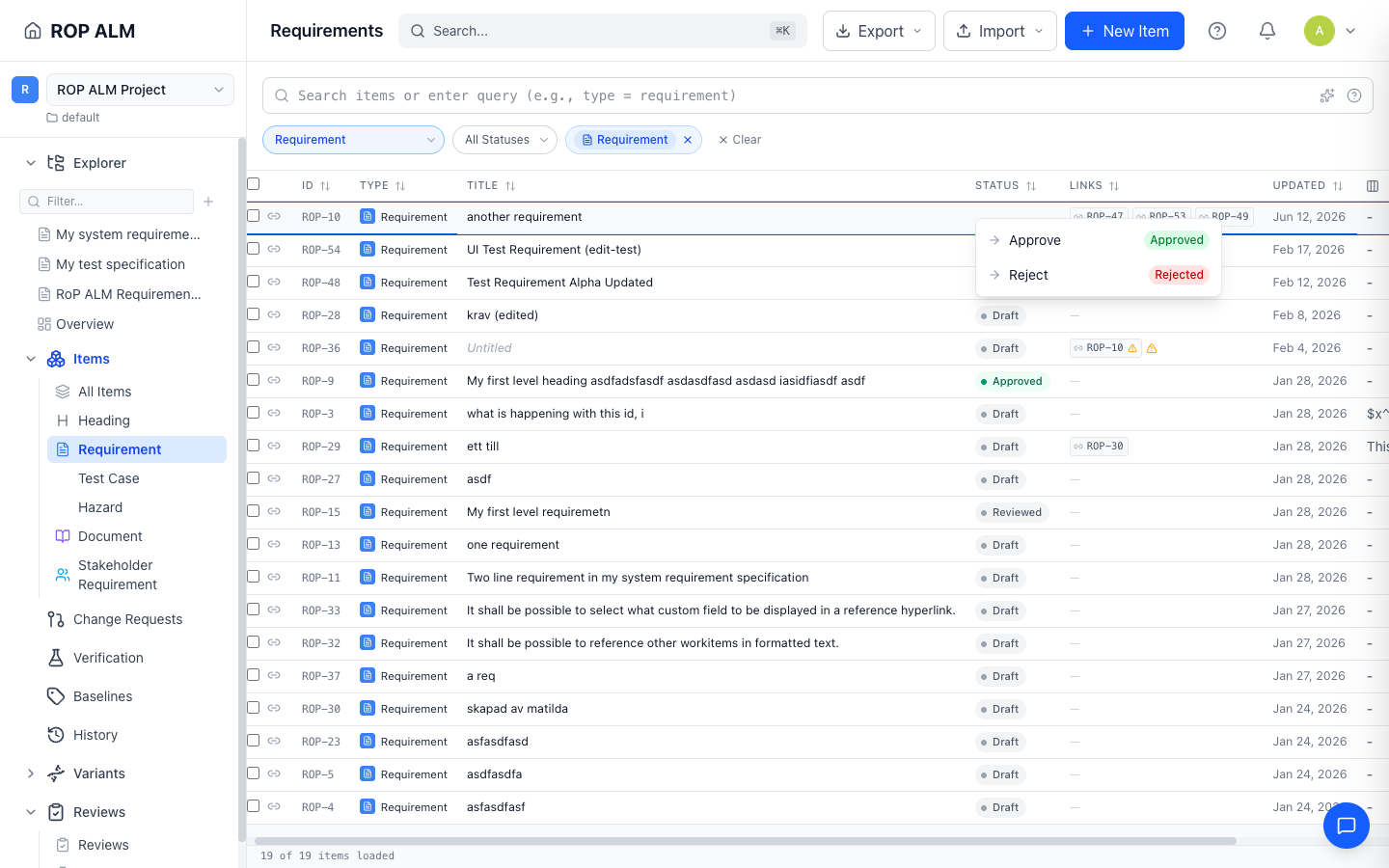
Note: Inline editing is disabled while viewing a baseline.
Editing in the Side Panel
Single-click a row to open the side panel. The Details tab has an editable title, rich-text description, and custom fields; the Links tab edits outgoing and incoming links. Changes are batched — nothing is applied until you click Save changes in the footer (⌘↵ also saves); Discard reverts. A gear icon lets you pick which fields are shown, saved per workarea.
Editing in the Detail Page
The full detail page has no edit-mode toggle — fields are always editable in place:
- Title — edit inline in the header card
- Description — rich text editor with formatting toolbar and image upload; click the text to start editing
- Custom fields — compact fields in the right Details card; long text/markdown fields as cards in the main column
- Links — add or remove outgoing and incoming links in the links sections
Save and Discard appear in the header as soon as there are unsaved changes. Closing or reloading the browser tab with unsaved changes triggers a warning.
Tips
- Single-click opens the side panel; double-click edits the cell. To open the full page, click the item’s ID, press Enter on a keyboard-focused row, or use Open full page in the side panel.
- Inline table edits save immediately and independently — no need to batch changes. Side panel and detail page edits are batched behind Save.
- If a save fails, a red toast appears at the bottom-right with details and dismisses after a few seconds.