History & Diffs
Every change in a workarea is a git commit, so the History page provides a complete audit trail with the ability to compare any two points in time.
Commit History
Navigate to History in the sidebar to see a paginated list of all commits (20 per page). Each commit shows:
- Commit ID — a short identifier
- Author and timestamp
- Message — description of what changed
- An amber baseline tag if the commit is a baseline
Actions per Commit
- View — browse the entire workarea read-only as it was at that commit
- Create Baseline — tag this commit as a named baseline
Comparing Commits
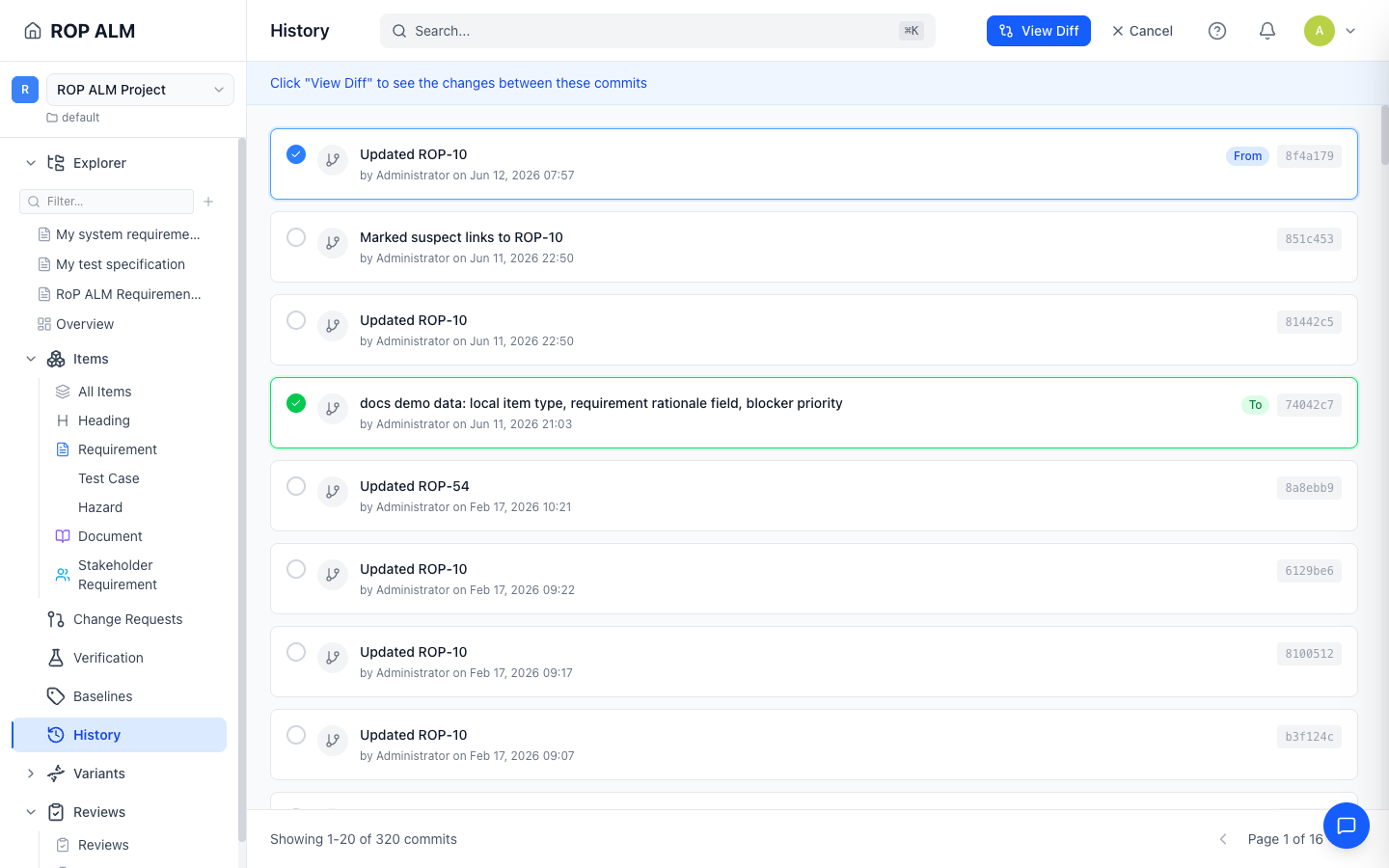
- Click Compare to enable compare mode
- Select the two commits to compare — the older one automatically becomes “From” and the newer “To”
- Click View Diff
The Compare Commits page shows:
- A summary card with counts of Added, Modified, and Deleted items
- The item change list, grouped by change type — click an item to open its diff, with before/after values and field-level highlighting
- A swap button to reverse the comparison direction
Item History
Each item’s detail page has a History card showing its last 10 versions. Expand an entry to see word-level field diffs, rich-text diffs, and link changes for that version.
Document Compare (Track Changes)
Documents have their own dedicated compare: in the document editor, open the History ribbon tab and click Compare versions. A compare bar appears with From/To pickers limited to commits that affected that document, and two view modes:
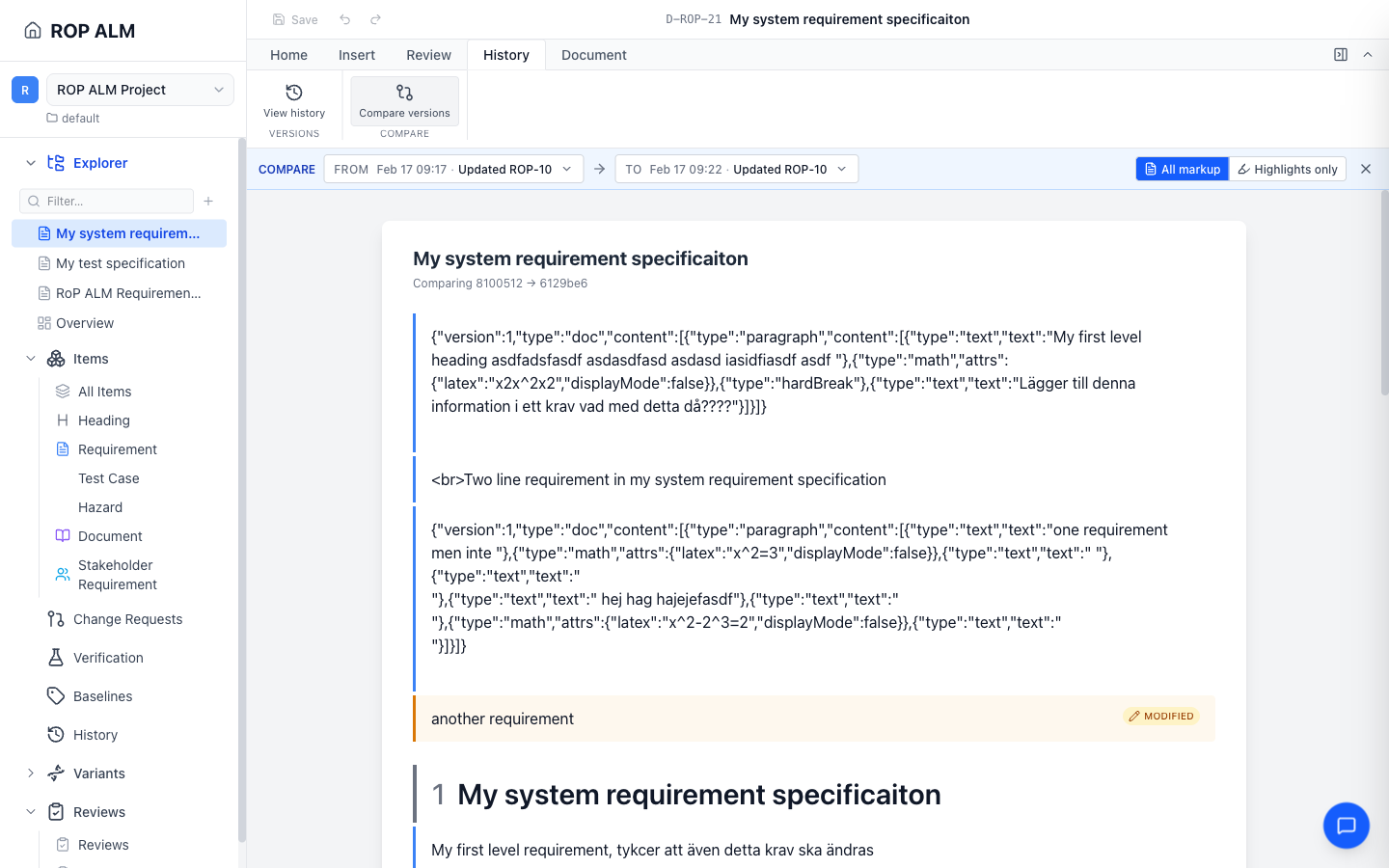
- All markup — the full document with inline track changes: added blocks in green, removed in red, modified in amber, with word-level changes inside rich text
- Highlights only — change bars in the margin; click to expand individual changes
See also the Document Editor article.