Working with Documents
Documents in ROPARC are live, structured documents built from work items: every block in a document — including its headings — is a real item in the workarea. That keeps your specifications and your item data in lock-step: edit a requirement in the document and you have edited the requirement.
Where Documents Live
Documents are organized in the Workspace section at the top of the sidebar — a folder tree that also holds dashboards. You can:
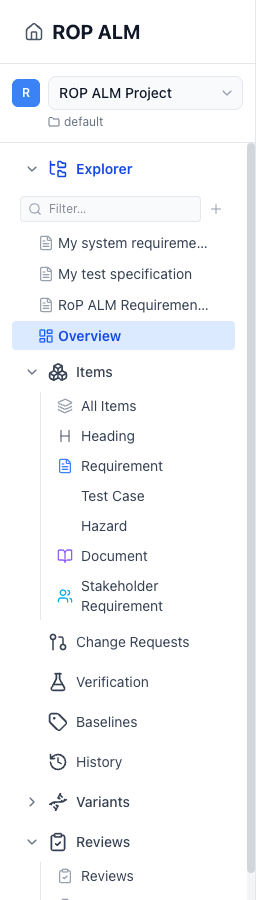
- Filter the tree with the search box
- Create folders and nest them arbitrarily
- Move documents between folders (drag in the Workspace tree, or Document → Move… in the editor)
- Create a document with the + menu (New document) — it opens immediately in the editor as Untitled document; name it by clicking the title
Each document appears in the tree with its document type’s icon and colour (dashboards show a grid icon), so you can tell requirement specs from test plans at a glance. Selecting a document opens it straight into the editor.
A flat Documents list page is also available, with text search and a status filter.
Document Structure
A document is a sequence of work-item blocks. A “section heading” is simply an item of the built-in Heading type with a level (Title, H1–H6); headings are numbered automatically (the Title level is not numbered). All other blocks are items of your configured types — requirements, test cases, hazards — each rendering its description as rich text plus configurable field chips.
Items can appear in more than one document (or several times in one) as live references that stay in sync, as pinned references frozen at a specific revision, or as independent duplicates.
Types and Status
Each document has a document type (configured in Workarea Administration under Data Model), which controls its ID abbreviation, allowed item types, custom fields, and workflow. The document’s status moves through workflow transitions on the editor’s Document ribbon tab — exactly like item statuses.
Documents can also carry their own traceability links, edited in the document Properties side panel (Document → Properties).
Editing
All editing happens in the Document Editor with its Office-style ribbon — see that article for inserting items, formatting, tables, images, math, and diagrams.
Reviews and Compare
- Submit documents for formal review — reviewing happens directly in the editor
- Compare any two versions of a document with track-changes markup — see History & Diffs
Export
From the editor’s Document tab you can export as Word (.docx) — with manageable Word templates — or PDF. ReqIF export of items is available from the items list (see Import & Export).
Tips
- Use heading items to organize related requirements logically
- Link items across documents to maintain traceability
- Create baselines to capture document snapshots at key milestones