Working with Items
Items are the core data objects in ROPARC. Each item has a type (such as requirement, test case, or hazard) that determines its available fields and workflow.
The Items List
The sidebar has a collapsible Items group containing All Items plus one entry per item type (e.g. Requirements, Test Cases). Clicking a type opens the table with the matching filter already applied to the query. The table supports:
- Sorting by clicking column headers — note this sorts the rows loaded so far, not the entire result set
- A unified query bar with a Visual / Text toggle over one query. Visual mode builds filter conditions graphically; Text mode is a single search bar that automatically switches between plain text search and the Query Language. Your last-used mode is remembered per workarea, and the query is written into the URL so a filtered view can be shared or bookmarked
- Saved views — a tab strip above the table (All Items plus one tab per saved view). Click New view to save the current query as a reusable view, scoped to yourself (Personal), the Workarea, or the Group; shared scopes require the
views:managepermission - Column visibility toggles via the column picker — your selection is saved per workarea (Created By, Updated By, and Created are hidden by default)
- Infinite scroll — items load in batches of 50 as you scroll; a status strip at the bottom shows how many of the total are loaded
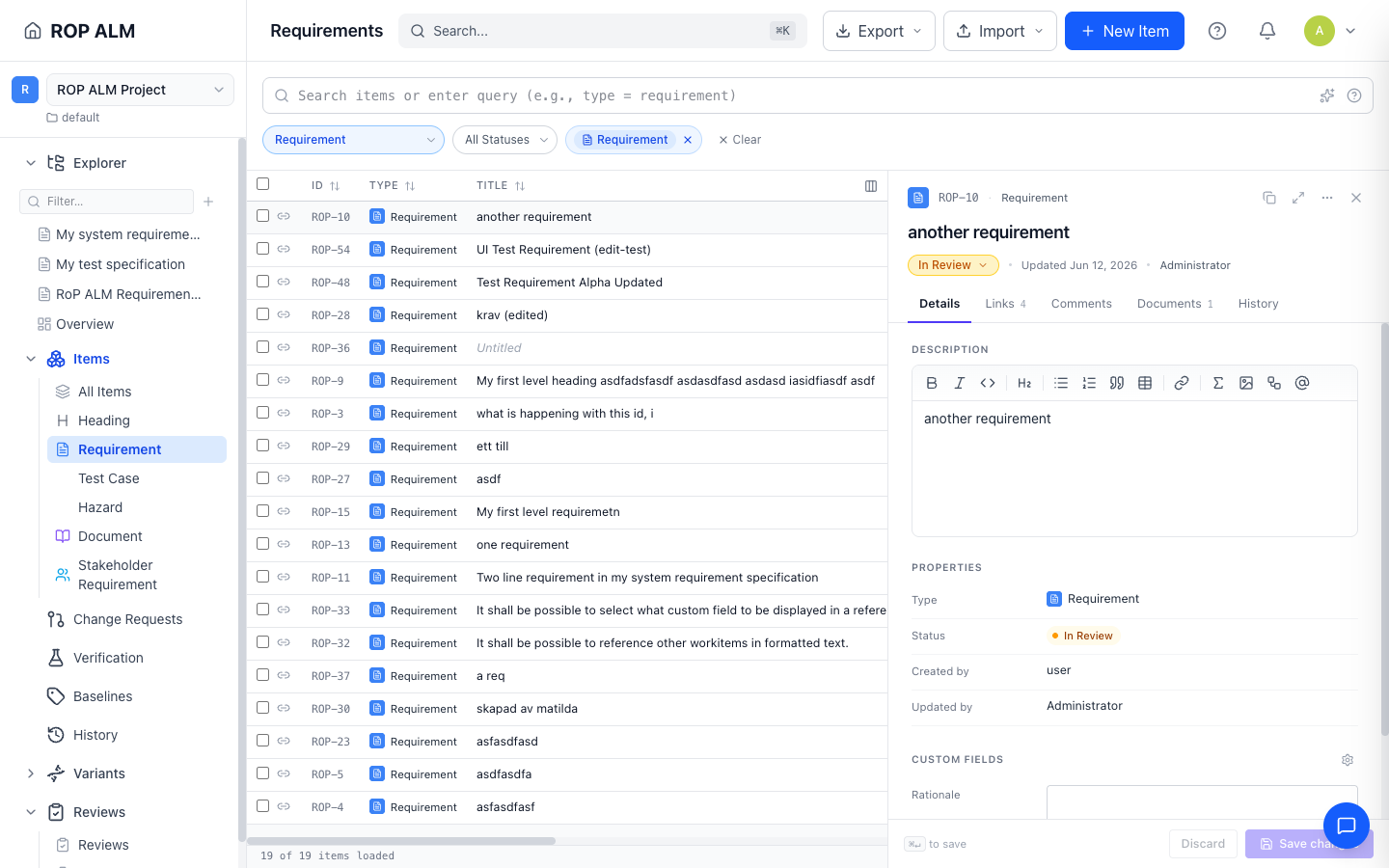
Single-click a row to open the side panel — a resizable editing panel with Details, Links, Comments, Documents, and History tabs. It has an editable title, rich-text description, and custom fields; changes are batched behind Save changes / Discard (⌘↵ saves). Use Open full page in its header to navigate to the full detail page, or Copy link to share the item.
Creating Items
- Click New Item in the items list header
- Pick the Type — the dialog shows the item’s initial status, derived from the type’s workflow
- Enter a Title (required), fill in Attributes — required fields are always shown; use Choose attributes to add optional ones (your selection is remembered per type) — and a rich-text Description
- Optionally add Links to existing items (the target picker is scoped to each link type’s valid targets) and set a Location to place the new item inside a document, choosing the heading to insert it after
- Click Create item — you are taken to the new item’s detail page
Note: On plans with an item cap, the New Item button shows a lock icon once the cap is reached.
The Item Detail Page
The header card shows the title, type badge, and the status transition dropdown. Below it, a two-column layout:
Left column:
- Description (rich text — click to edit)
- Large text/markdown custom fields, each as its own card
- Verification steps (for test cases)
- Item links — outgoing and incoming, both editable
- History (last 10 versions with diff view)
Right sidebar:
- Details — enum, string, number, boolean, date, and reference fields
- People & Dates — creator, updater, assignee, timestamps
There is no separate edit mode — fields are always editable in place. Save and Discard buttons appear in the header as soon as you have unsaved changes; closing the browser tab with unsaved changes triggers a warning.
Note: If your role grants only read access to an item, a “View only” banner is shown and the status appears as a plain badge instead of the transition dropdown.
Status and Workflows
Item statuses are controlled by workflows. You cannot type a status directly — you perform transitions that move the item from one state to another. Transitions may have guards (conditions that must be met) and effects (actions performed automatically).
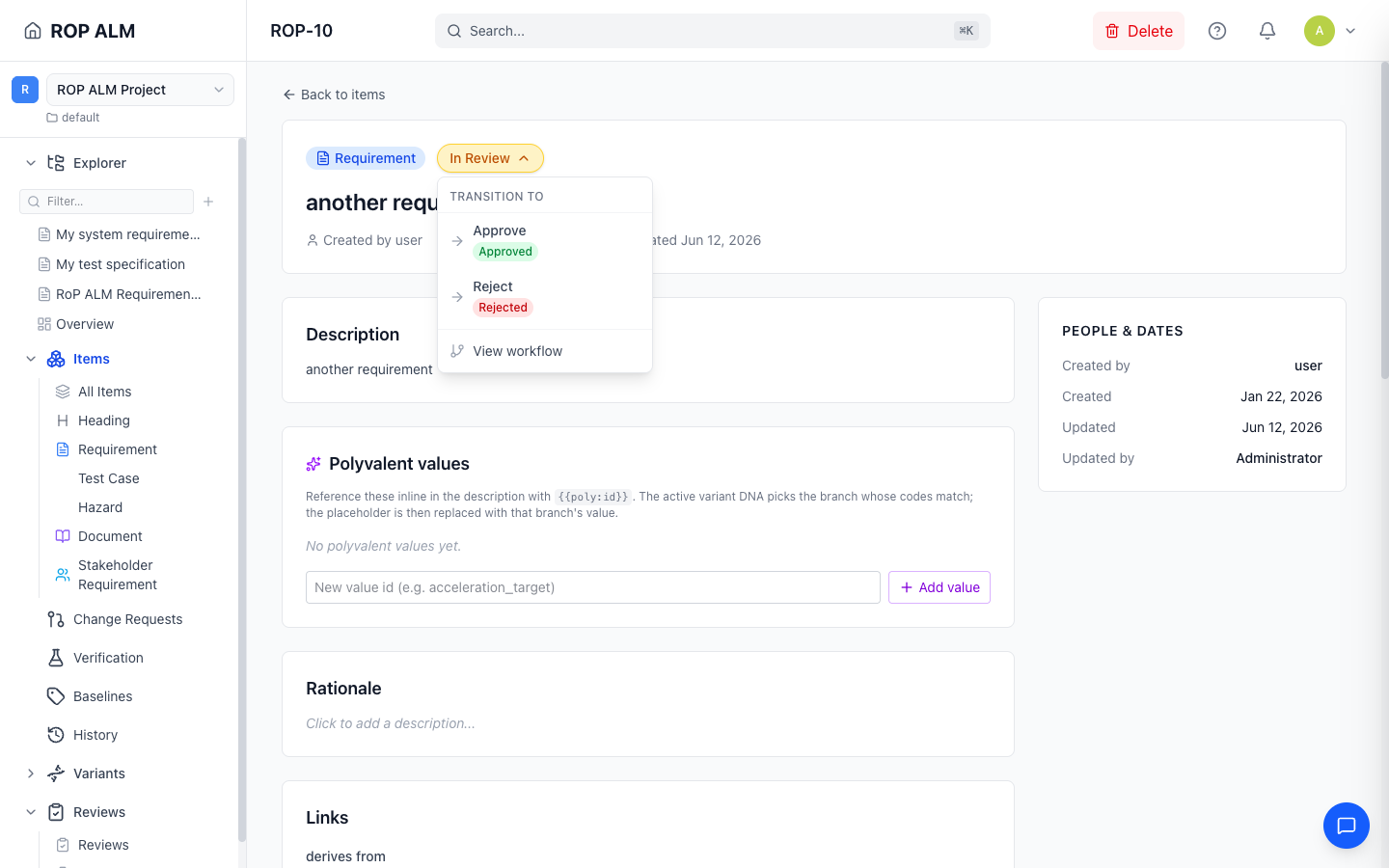
To transition an item, use the status dropdown on the detail page, or double-click the Status cell in the table. The dropdown explains why a transition is unavailable (failed guards, missing permissions show a lock icon) and includes a View workflow entry that opens the full workflow diagram. See Workflows.
Editing and Bulk Operations
- Inline editing — Double-click cells in the table to edit titles, enums, dates, and custom fields directly. See Inline Editing.
- Bulk operations — Select multiple items to delete, export, or transition them in bulk. See Bulk Operations.
- Duplicate — Right-click a row and choose Duplicate to create a copy.
- Link from the list — The link button next to a row’s checkbox starts link mode: pick a link type in the banner that appears, then click the target row. Esc cancels.
Import and Export
The Import and Export menus support Excel (.xlsx) and ReqIF. See Import & Export.
Baseline Mode
When viewing a baseline, the list is read-only: creating, selecting, inline editing, and importing are disabled. Export remains available.