Troubleshooting Permissions
When a user reports “I can’t do X but I should be able to” — or can do something they shouldn’t — the Effective Permissions inspector answers it in seconds. This article shows how to use it and walks through the common cases.
The Effective Permissions inspector
Open Administration → Site → Access & Security → Effective Permissions and pick a user. Optionally narrow the question:
- Workarea ID — evaluate the user’s permissions within that workarea (includes workarea and workarea-group grants).
- Resource ID — evaluate query-scoped grants against a specific item, e.g.
ROP-42. Without a resource ID, conditional grants cannot be decided.
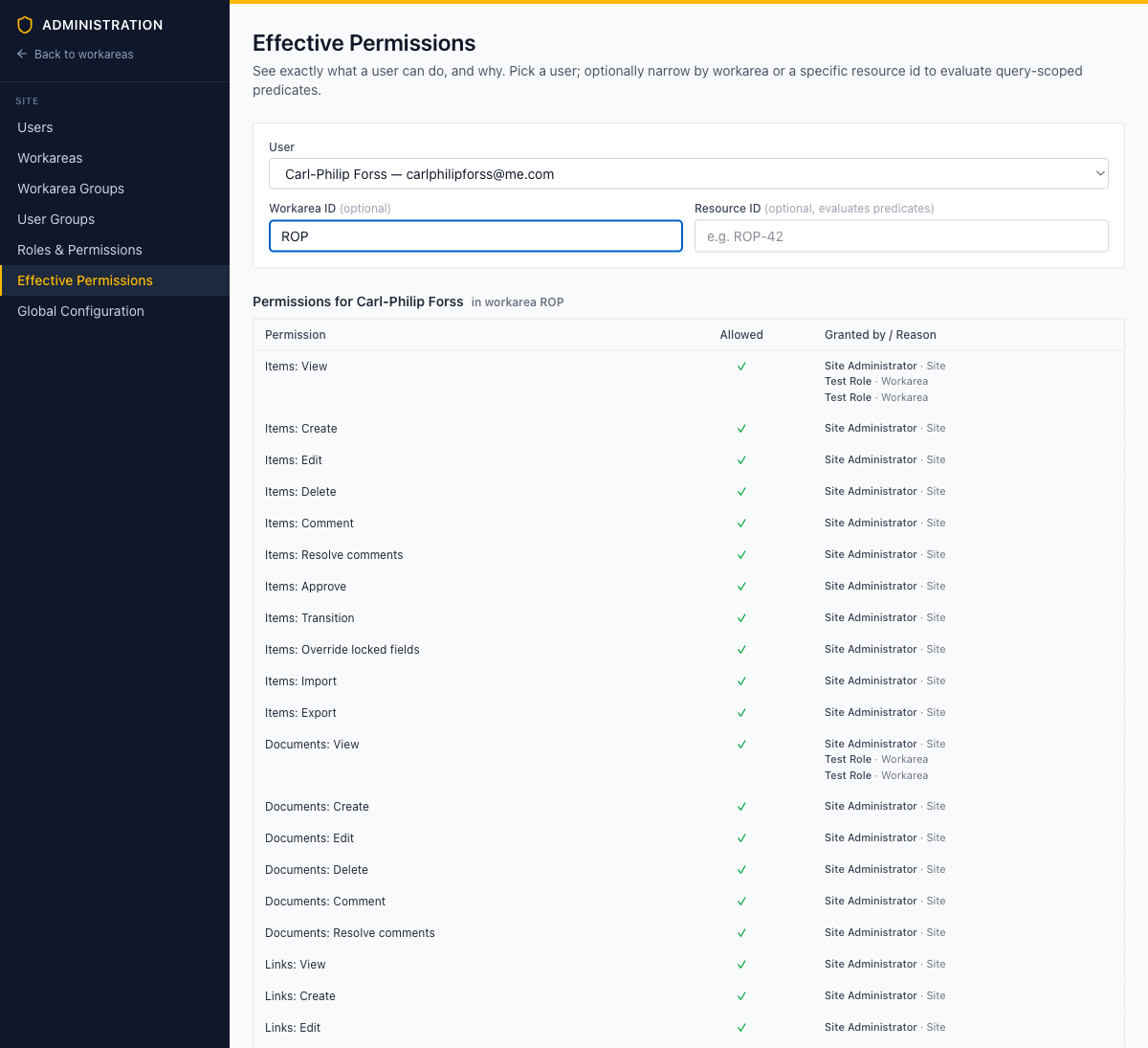
The result is a truth table: one row per permission, whether it is Allowed, and — crucially — Granted by / Reason: which role granted it, at which tier, with which predicate, and why it matched or didn’t. This is the union of everything the user holds via direct workarea membership, site roles, and user groups.
Reading the result
| What you see | What it means | Fix |
|---|---|---|
| ✗ with no grants listed | No role the user holds grants this permission at any tier | Assign a role that grants it, or add the permission to a role they hold |
| ”Grant is conditional but no resource was specified” | The user has a query-scoped grant; whether it applies depends on the resource | Re-run the lookup with a Resource ID |
| ”Resource did not match predicate” | The grant’s condition didn’t match this particular resource | Check the predicate against the resource’s actual field values (see below) |
| ✓ in the inspector, but the action still fails in the app | Something other than RBAC is blocking | See “Allowed but still blocked” below |
When a predicate doesn’t match
Look at the predicate and the resource side by side:
- Does the resource actually have the custom field the predicate references, with the expected value?
- Is the
$userattribute the predicate uses (email, display name) actually set on the user? An unset attribute matches nothing. - Is the user’s ID what you think it is?
created_by = $user.idcompares exact IDs, not display names.
Allowed but still blocked
If the inspector says ✓ but the user still can’t act, the block is usually one of these:
Stale login session
Site-tier role changes are baked into the user’s login session. After changing a user’s site roles, they must log out and log back in before the change takes effect. Workarea-tier changes apply immediately.
Workflow field locks
The item’s current workflow status may mark specific fields read-only. That is workflow configuration, not a permission problem — the user’s Items: Edit is intact, but the field is locked in that state. Either transition the item to a status where the field is editable, or grant the Items: Override locked fields permission. See Workflows.
Transition guards
If the blocked action is a status change, the transition itself may have guards (required fields, required links, permission checks) that aren’t satisfied. Hover the greyed-out transition button to see which guard failed, or inspect the transition in the workflow editor.
Common patterns
“I can see all items but can’t edit any.” The user holds a view-only role (e.g. Viewer). Assign Editor or another role with Items: Edit.
“I can edit some items but not others.” The user’s Items: Edit is query-scoped, and the predicate matches exactly the items they can edit. Confirm that’s the intent, or adjust the predicate.
“I’m a workarea admin but can’t manage users.” By design: user management is a site-tier permission. Workarea Admin covers everything inside the workarea; creating users and assigning site roles belongs to Site Administrators.
“The user sees fewer items in the list than exist.” A query-scoped Items: View filters lists and search results to matching items only. Check the predicate on their viewing grant.