Verification
The Verification module lets you plan and execute test iterations against your test cases. It tracks test execution results and provides traceability from requirements to test evidence.
Verification Iterations
A verification iteration is a planned test run that groups related test cases for execution. Each iteration has a type (configurable in Verification Configuration, with its own color, icon, custom fields, and workflow), a title, description, an optional target baseline, and a status driven by its workflow.
Creating an Iteration
- Navigate to Verification in the sidebar
- Click New Iteration
- Select the iteration type, enter a title and description, and optionally set a target baseline
- Click Create
You can filter the iterations list by target baseline with the filter box at the top.
Adding Test Cases
Test cases are added on the iteration’s detail page in the Add Items section. Its search box accepts plain text or the Query Language (e.g. type = test_case AND status = approved); add items individually or with the Add N Items bulk button.
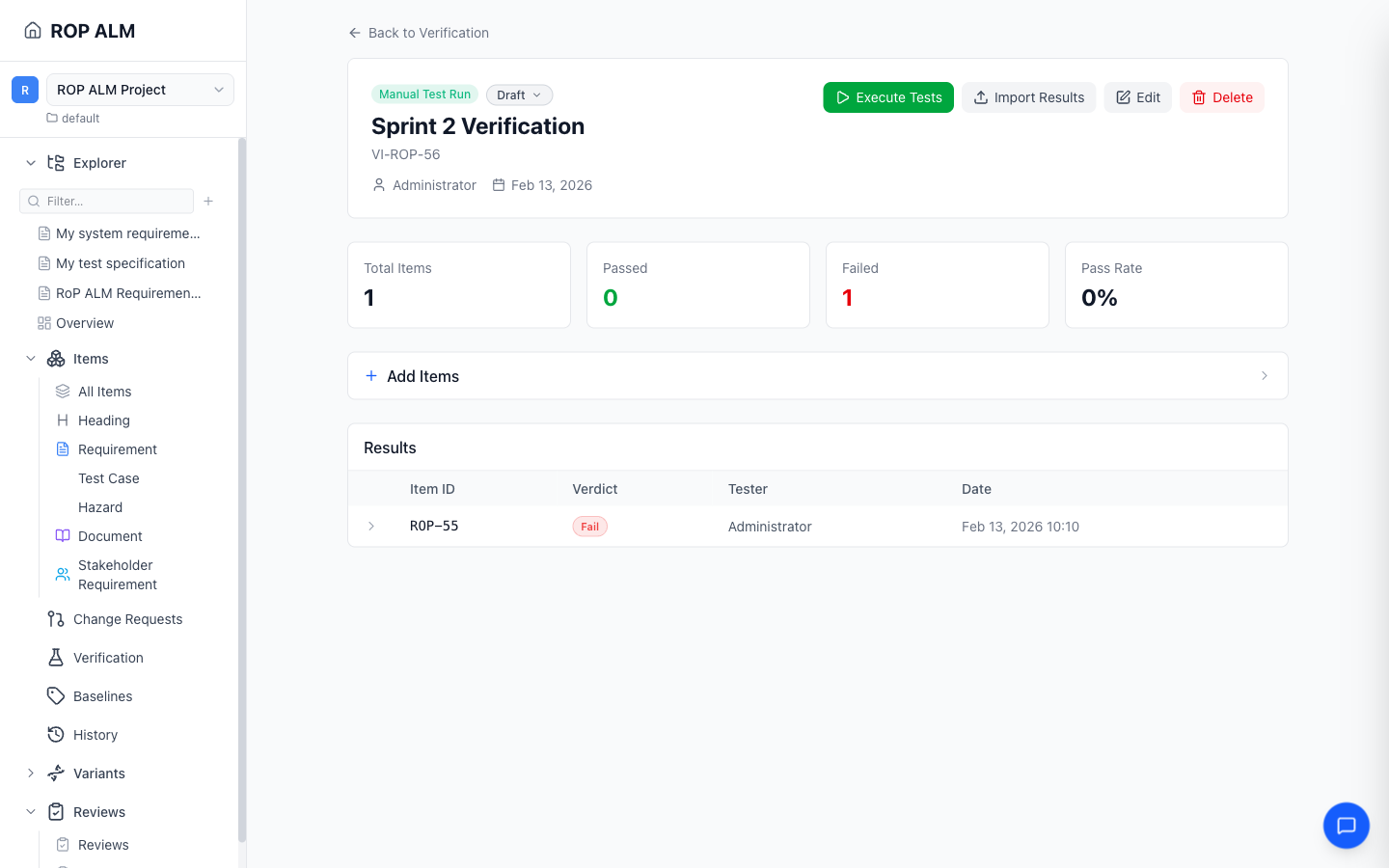
The detail page also shows Total Items / Passed / Failed / Pass Rate stat cards and a Results table with the latest result per item — rows expand to show per-step verdicts and notes. Results are append-only: re-testing adds a new result rather than overwriting; an item can only be removed from the iteration while it is still unexecuted.
Verification Steps
Test cases contain verification steps — each step defines an action to perform and the expected result, both rendered as markdown. Steps can also reference another item’s steps (shown with a link icon).
Steps are defined as a custom field (type Verification Steps) on test case item types and are edited on the item detail page.
Executing Tests
Open an iteration and click Execute Tests (enabled once the iteration has items). See Test Execution for the full guide to the execution interface.
Importing Automated Results
The Import Results button on the iteration detail page opens a wizard for JUnit/xUnit XML files: upload, map the tool’s verdicts to your verdict options, choose how test cases are matched (by a test-case ID field, by title pattern, or auto-create missing items), preview, and import. Imported results are tagged with their source tool and shown alongside manual results.
Verdicts
Verdicts are defined by the workarea’s verdict enumeration (see Verification Configuration), so the set is configurable. The default options are:
| Verdict | Description |
|---|---|
| Pass | The step/case passed |
| Fail | The step/case failed |
| Blocked | The test could not be executed |
| Skipped | The test was deliberately skipped |
| Not Run | Not yet executed |
Each step receives an individual verdict, and each test case an overall verdict. Once all steps have verdicts, the overall verdict is derived automatically (all pass → pass, any fail → fail, any blocked → blocked); you can override it manually at any time.