Roles & Permissions
ROPARC controls access with roles: named bundles of permissions that are assigned to users (or user groups) at a chosen scope. This article explains the permission model and the Roles & Permissions admin page where roles are defined.
Requires site administration access. Managing roles is done at Administration → Site → Access & Security → Roles & Permissions.
The model in one paragraph
A permission is a resource:action pair such as Items: Edit or Baselines: Approve. A role is a collection of permission grants. A role is assigned to a user at a scope — the whole site, a workarea group, or a single workarea — and the user can then perform the granted actions within that scope. Permissions are additive only: a user’s effective rights are the union of everything their roles grant, and there are no “deny” rules that subtract access.
Scope tiers
Access cascades through the same three-level hierarchy used for configuration inheritance:
site                   ← the entire installation
  └── workarea group   ← a collection of workareas (e.g. "Automotive")
        └── workarea   ← the unit users work in (e.g. "ROP")
A grant at a broader tier automatically covers the narrower tiers:
| Granted at | Applies to |
|---|---|
| Site | Every workarea and workarea group in the installation |
| Workarea group | Every workarea inside that group |
| Workarea | That single workarea only |
For example, granting someone Editor at the workarea-group tier for Automotive lets them edit items in every workarea inside Automotive — without repeating the assignment per workarea.
Built-in roles
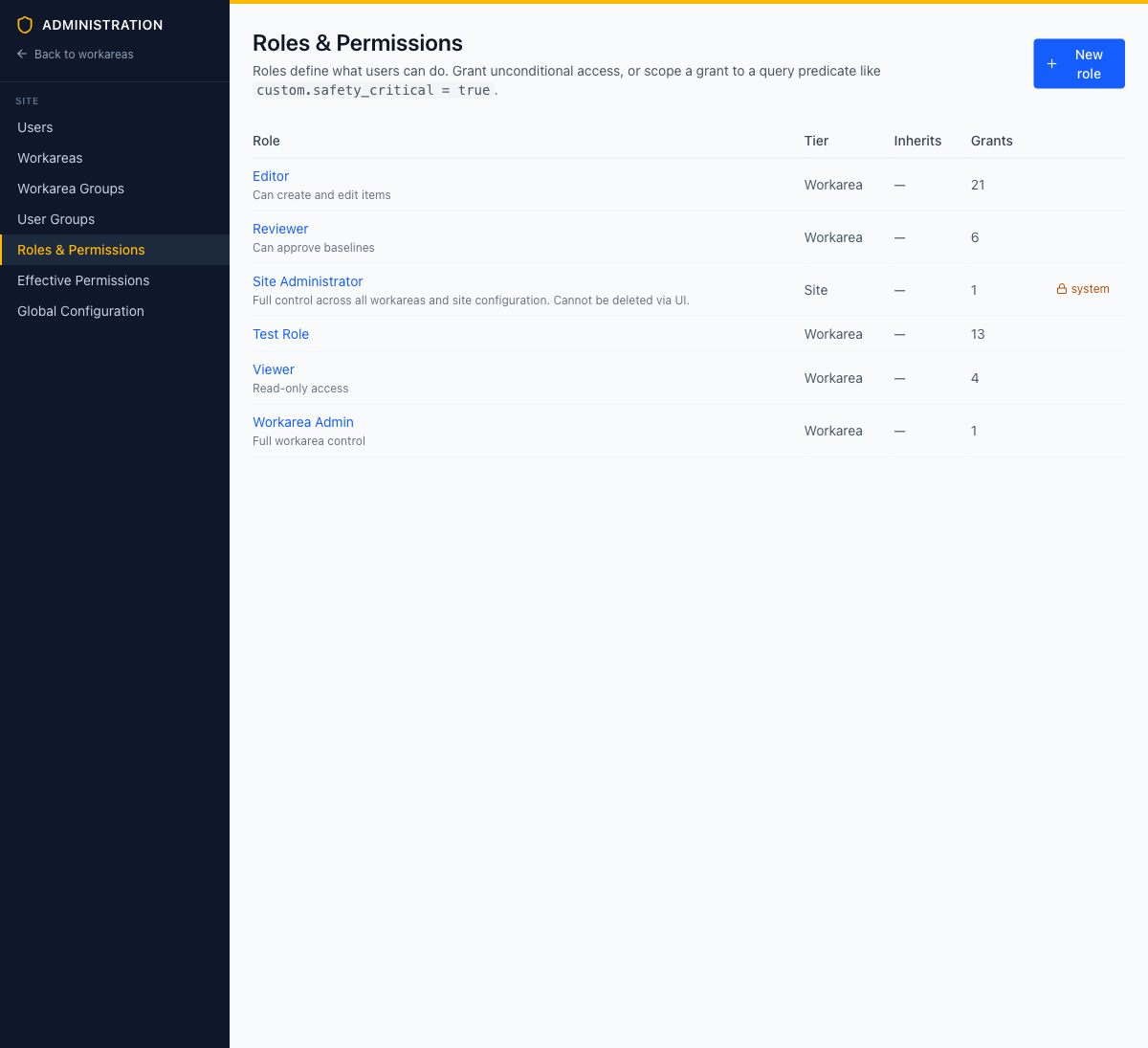
ROPARC ships with these roles. They are a starting point — you can edit them or create your own.
| Role | Tier | Description |
|---|---|---|
| Viewer | Workarea | Read-only access to workarea content |
| Editor | Workarea | Create and edit items, documents, links, and folders |
| Reviewer | Workarea | Editor rights plus baseline approval and review management |
| Workarea Admin | Workarea | Every permission within the workarea, including settings and members |
| Site Administrator | Site | Every permission everywhere, including user, role, and workarea management. System-protected — cannot be deleted |
The permission matrix
Click a role to open its detail page. Permissions are edited in a matrix: rows are resources (grouped into Content, Workarea administration, and Site administration), columns are actions.
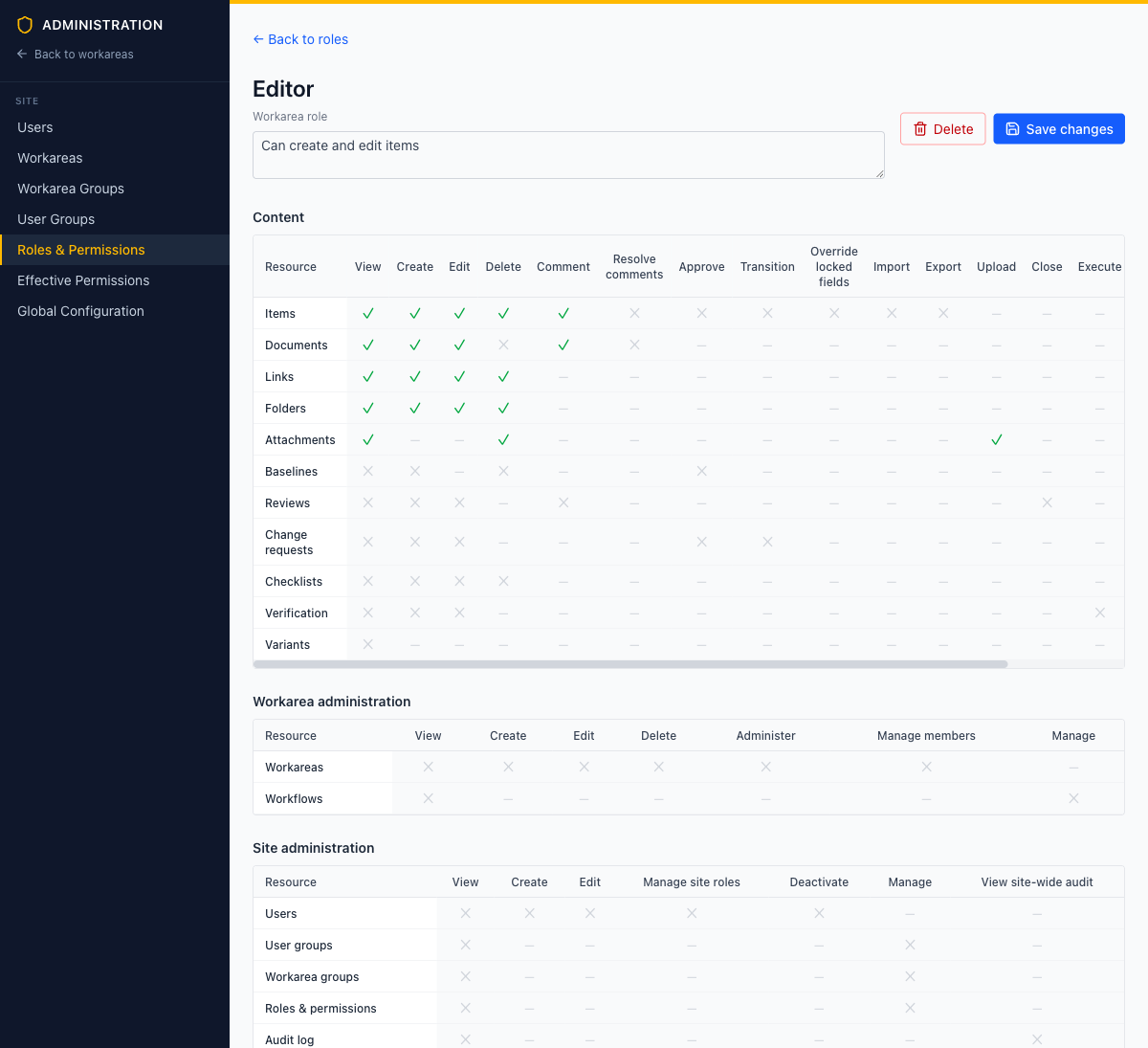
Each cell has one of four states:
| Symbol | Meaning |
|---|---|
| ✗ | No grant |
| ✓ | Unconditional grant |
| 🔍 | Query-scoped grant — applies only to resources matching a query predicate (hover to see it) |
| — | The action does not exist for that resource |
Click an empty cell (✗) to add an unconditional grant. Click a granted cell (✓ or 🔍) to open the grant editor in the side panel, where you can attach a query predicate — turning it into a 🔍 query-scoped grant — or remove the grant entirely. See Query-Scoped Permissions. Changes are batched; nothing is applied until you click Save changes.
Creating a custom role
- Click New role
- Enter an ID — a stable identifier (lowercase letters, digits,
-,_). Cannot be changed after creation - Enter a Name and optional Description
- Optionally pick Inherits from — a parent role whose grants flow into this one
- Pick a Tier — workarea (default), workarea group, or site
- Save, then add grants via the permission matrix
Role inheritance
A role with a parent receives all of the parent’s grants, including any query predicates on them. Inheritance is single-parent and additive — a child can add grants but never remove what the parent gives. If you need a user to combine several independent roles, assign them multiple roles instead of building an inheritance chain.
How roles get assigned
Defining a role grants nothing by itself. Roles reach users through three routes:
| Route | Where | Typical use |
|---|---|---|
| Workarea membership | Workarea → Settings → General → Members | Day-to-day access for one team in one workarea — see Members |
| Site roles on a user | Administration → Site → Access & Security → Users → user → Roles | Site administrators and other installation-wide roles |
| User groups | Administration → Site → Access & Security → User Groups | Granting one role to many people at once, at any tier — see User Groups |
A user’s effective permissions are the union of everything from all three routes. To see the combined result for a specific user — and why each permission is allowed or denied — use the Effective Permissions inspector described in Troubleshooting Permissions.
System-protected roles
The Site Administrator role carries a system badge. It cannot be deleted, and its full-access grant cannot be removed — this guarantees the installation always has a recovery path. You can still rename it or edit its description.
Every change is versioned
Role definitions live in the global configuration repository, so every save is recorded with who changed what and when — the same audit trail as items and documents.