Import & Export
ROPARC exchanges data in two formats: Excel for spreadsheet-based workflows and ReqIF for requirements interchange with other ALM tools. Both live in the Import and Export menus in the items list header.
To import a prose specification (PDF or Word) rather than tabular data, see Document Import — it splits the document into blocks and classifies them with rules.
Exporting to Excel
Export → Excel (.xlsx) exports the items matching the current Type/Status filter chips (note: the search query is not applied). To export a specific set, select rows and use Export in the bulk action bar.
The spreadsheet contains ID, Type, Title, Status, and Description columns, plus one column per custom field and one per link type (listing linked item IDs). Re-importable and filter-ready, with a capped maximum of 10,000 items per export.
Importing from Excel
Import → Excel (.xlsx) opens the import wizard (.xls works too). Imports always create new items, and each import is a single git commit — you can set the commit message before running it.
1. Upload
Drop or pick the file, choose the sheet (multi-sheet workbooks supported), and optionally Load saved configuration to pre-fill everything from a preset. Common columns like Title, Description, and Status are mapped automatically.
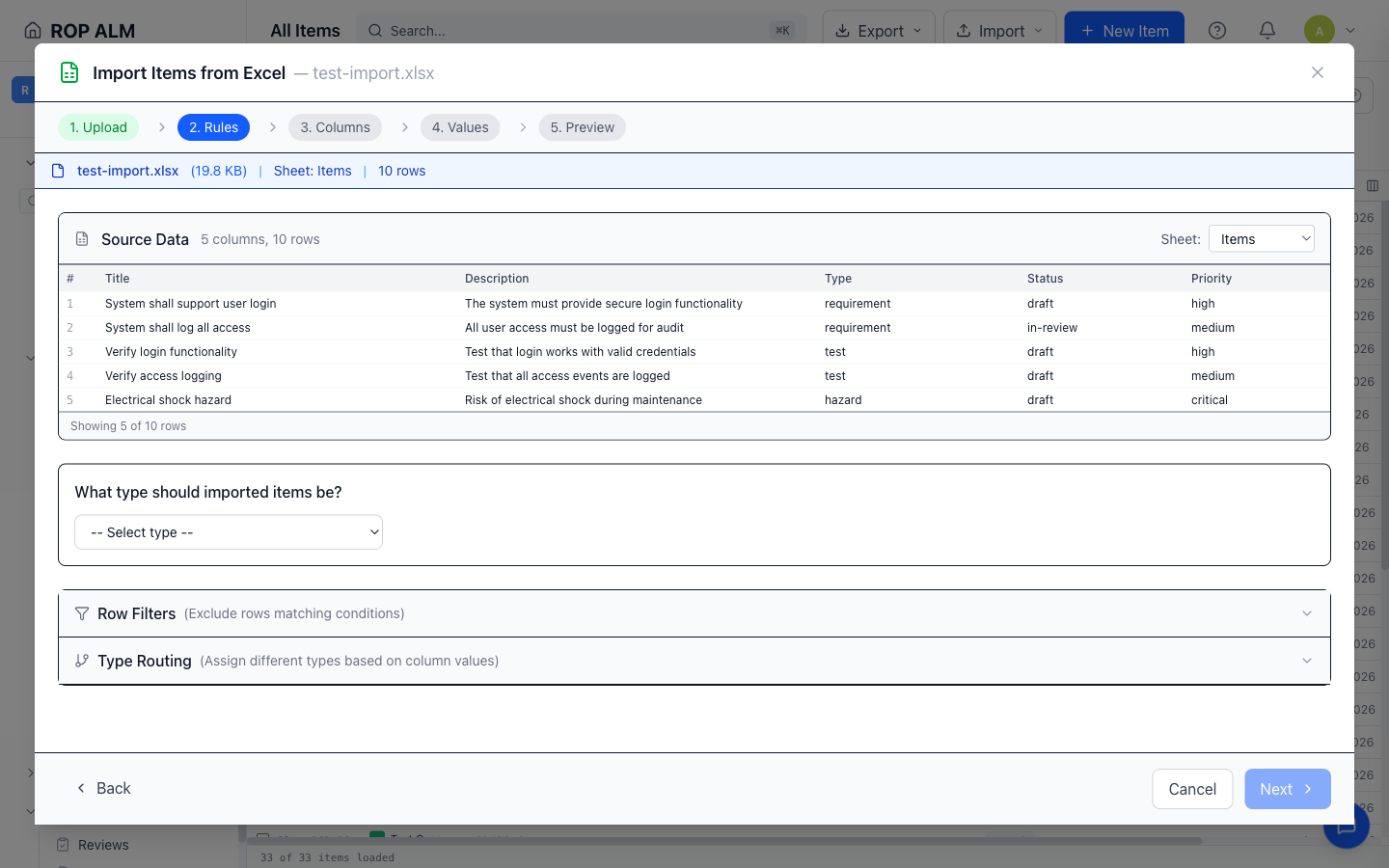
2. Rules
A preview of the source data with three decisions:
- Default item type — what imported rows become
- Row filters — skip rows by column conditions (equals, contains, is empty, …); excluded rows are struck through in the preview
- Type routing — route rows to different item types based on a column value (e.g. rows where Category equals “Test” become test cases)
3. Columns
Map each Excel column to a target field — Title, Description, Status, custom fields (when routing to multiple types, only fields common to all of them are offered), or link columns that create links during import. Unneeded columns can be skipped.
4. Values
Shown only when a mapped enum column needs it: map the values in your file (e.g. “New”, “Done”) to the corresponding configured options. Rows without a status get the item type’s workflow initial status.
5. Preview
Review the transformed data, set the Commit Message, optionally Save Configuration as a preset for next time, and click Confirm & Import. The result screen lists each row’s outcome with error details for failed rows.
ReqIF
ReqIF (Requirements Interchange Format) moves whole specifications between tools:
- Import → ReqIF (.reqif) analyzes the file and auto-maps its types and fields; options let you also import documents (specifications become ROPARC documents) and import relations as links
- Export → ReqIF… lets you pick the documents and, per item type, the fields to include — it can also be launched for a single document from the document editor
Note: On metered plans, ReqIF export requires the corresponding plan entitlement — a lock icon indicates when an upgrade is needed.